🧱 Device
🏗️ Manufacturer
#️⃣ Model No.
KC-411W
CPU/Chipset(s)
Interface/port(s)
FCC ID
2BBGE-WS511-1
2BBGE-WS511-2
Year
ASIN
B09P33RWFJ
Operating System(s)
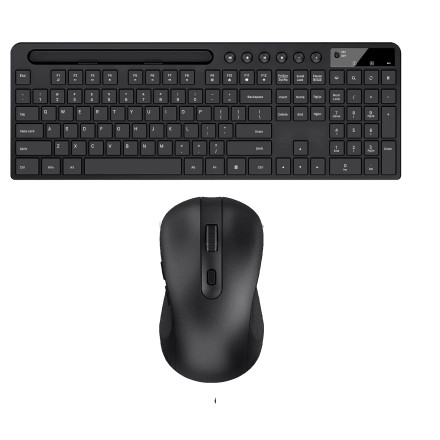
The MARVO KC-411W uses a 2.4GHz wireless USB Nano Receiver to connect both the keyboard and mouse to your computer. The receiver is required for operation; neither device connects directly through Bluetooth. The small USB receiver is typically stored inside the mouse's battery compartment.
If the keyboard or mouse stops responding, try the following troubleshooting steps.
- Check the USB Receiver: Make sure the USB Nano Receiver is removed from the mouse's battery compartment and plugged into an available USB port on your computer. Try another USB port if the devices are not detected.
- Replace the Batteries: Both the keyboard and mouse require their own AA battery. Replace weak batteries and check that they are installed with the correct polarity.
- Check the Power: Make sure the mouse power switch is set to ON. Check that the keyboard is powered and responding.
- Re-pair the Keyboard: If the keyboard loses its wireless connection, unplug the USB receiver, hold down the
ESC + Qkeys for approximately three seconds until the battery indicator flashes, then reconnect the receiver. - Check Wireless Interference: Move the keyboard and mouse closer to the receiver. Avoid placing the receiver behind a desktop computer case or near other wireless devices.
- Check the Mouse Sensor: If the mouse cursor jumps or moves erratically, clean the optical sensor and try using the mouse on a different surface.
Important Notes
- The USB Nano Receiver is shared by both the keyboard and mouse.
- The receiver must remain connected for wireless operation.
- The KC-411W is generally plug-and-play and does not require a separate driver installation.
- If the USB receiver is missing or damaged, a generic wireless USB receiver may not work as a replacement because the devices are paired to their original receiver.