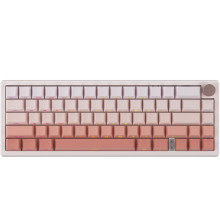
🧱 Device
🏗️ Manufacturer
#️⃣ Model No.
PC430A
Also Known As
K870T
PC430A Pink Mechanical Keyboard
🛜 Network Technology
Interface/port(s)
FCC ID
2BH47-PC430A
Operating System(s)
RisoPhy PC430A Keyboard Connection Instructions
The RisoPhy PC430A supports three connection modes: USB wired, Bluetooth, and 2.4 GHz wireless.
- USB Wired Mode: Connect the keyboard to your computer using the supplied USB cable. The keyboard can be used normally while the internal battery is charging.
- Wireless Mode: To use Bluetooth or the 2.4 GHz USB receiver, move the connection mode switch to the appropriate Bluetooth or 2.4G position. Wireless functions are disabled when the switch is set to USB.
- Operating System Switch: Set the Win/Mac switch to match your computer before connecting. This ensures the function keys and keyboard shortcuts work correctly.
- Connect the Keyboard: For 2.4 GHz, insert the USB receiver into your computer. For Bluetooth, place the keyboard into pairing mode and select RisoPhy PC430A from your computer's Bluetooth settings.
Installing the PC430A Driver (PC430A_Driver_V1.1_1.exe)
- Connect the RisoPhy PC430A to your computer using the supplied USB cable, then download the and run PC430A_Driver_V1.1_1.exe that is included below.
- Follow the on-screen installation wizard, accept any prompts, and allow the driver installation to complete.
- Restart your computer if prompted, then disconnect the USB cable if desired and reconnect the keyboard using USB, Bluetooth, or the 2.4 GHz USB receiver. Ensure the connection mode and Win/Mac switches are set correctly for your setup.
RisoPhy PC430A Keyboard Driver
File: PC430A_Driver_V1.1_1.exe
SHA-256 Checksum:
4cb1c55f67e93d258e913ad2e805d2ac21d13f25197fb683acf0153d5d8d16e1
📖Documentation/Manuals:



