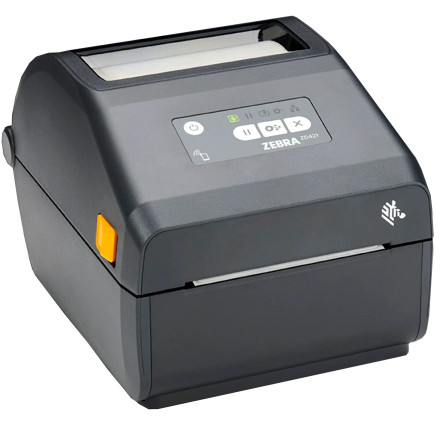
The Zebra ZD421 is a desktop label printer available in 203 dpi and 300 dpi configurations. Installing the correct Zebra Windows printer driver allows Windows 11 and Windows 10 computers to communicate with the printer over USB or a network connection.
Zebra ZD421 Driver Download
Download and install the ZDesigner Windows Printer Driver v10 for the ZD421. Select the driver version that matches your printer and follow the installation prompts.
For first-time setup, connect the ZD421 directly to the computer with a USB cable when the installer requests it.
How to Install the Zebra ZD421 Driver
- Download the ZDesigner Windows Printer Driver v10.
- Run the downloaded installer and follow the setup instructions.
- Select Zebra ZD421 and choose the correct 203 dpi or 300 dpi model.
- Connect the printer by USB when prompted and complete the installation.
- Print a Windows test page to verify the printer is working.
Install Using Zebra Setup Utilities
Zebra Setup Utilities can also be used to install and configure the ZD421.
- Download and install Zebra Setup Utilities for Windows.
- Open the utility and select Install New Printer.
- Select the ZD421 and follow the printer setup wizard.
- Choose USB or network connection and complete the setup.
- Print a test label to confirm communication with the printer.
Add a Network Zebra ZD421
If your ZD421 is connected to Ethernet or Wi-Fi, you can add it to Windows using its IP address.
- Find the printer's IP address from its configuration information.
- Open Settings > Bluetooth & devices > Printers & scanners.
- Select Add device, then choose Add manually.
- Select Add a printer using a TCP/IP address or hostname.
- Enter the ZD421 IP address and select the installed Zebra driver.
Configure ZD421 Labels
After installing the driver, check the printer preferences before printing labels. Select the correct label size and media type for the stock installed in the printer.
The ZD421 may use gap, black-mark, or continuous media. The selected media setting should match the labels being used.
If labels are feeding incorrectly or the print position is off, run a media calibration from the printer utility and check the label size in Printing Preferences.
Zebra ZD421 203 dpi vs 300 dpi
The ZD421 is available with different print resolutions. Make sure the installed driver and printer configuration match the physical printer.
Using the wrong resolution can result in incorrect print scaling or other printing problems.
Check the printer's identification label or configuration information to determine whether your ZD421 uses a 203 dpi or 300 dpi printhead.
Zebra ZD421 ZPL and EPL
The ZD421 supports Zebra printer languages used by compatible label-printing software. ZPL is commonly used with modern Zebra printing applications, while some older software may use EPL.
Use the printer language required by your label software rather than changing the setting unnecessarily.
Troubleshooting the Zebra ZD421
ZD421 not detected by Windows
Disconnect the USB cable, restart the computer, and reconnect the printer. If Windows installed a generic printer driver, remove the incorrect printer queue and reinstall the Zebra driver.
ZD421 labels are skipping
Check the label size and media type in Printing Preferences. Run a media calibration if the printer is not correctly detecting label gaps or black marks.
ZD421 prints faint labels
Check the print darkness and print speed settings. The appropriate settings depend on the label material and ribbon configuration.
ZD421 prints incorrect characters
Check the printer language and the settings used by your label-printing software. ZPL and EPL configurations should match what the application expects.
ZD421 labels are misaligned
Verify the label dimensions and media sensor settings, then perform a calibration. Incorrect label size or sensor settings can cause the printer to feed labels incorrectly.
Frequently Asked Questions
Does the Zebra ZD421 work with Windows 11?
Yes. The ZD421 can be installed on Windows 11 using the appropriate Zebra Windows printer driver.
Does the ZD421 work with Windows 10?
Yes. Install the compatible Zebra printer driver and add the printer through USB or a network connection.
Which driver does the ZD421 use?
The ZD421 uses the Zebra Windows printer driver, commonly installed as the ZDesigner Windows Driver v10.
How do I connect the ZD421 to my computer?
The ZD421 can be connected directly through USB or configured as a network printer when the appropriate network connection is available.
How do I calibrate a Zebra ZD421?
Check the media settings in the printer driver or Zebra Setup Utilities and run a calibration when the printer is not correctly detecting the labels.
How do I know whether my ZD421 is 203 dpi or 300 dpi?
Check the printer identification label or configuration information to determine the installed printhead resolution.



