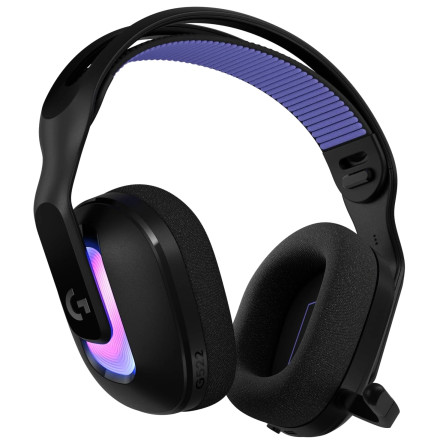
Logitech G522 LIGHTSPEED Wireless Gaming Headset – Troubleshooting and Compatibility
The Logitech G522 LIGHTSPEED is a wireless gaming headset supporting three connection methods: LIGHTSPEED wireless through its USB receiver, Bluetooth, and wired USB audio. If the headset isn't connecting, has no sound, or the microphone isn't working, check the connection mode and Windows audio settings before reinstalling software.
Bluetooth Pairing Problems
- Turn on the headset using the power switch.
- Press and hold the Bluetooth/Wireless button for approximately 3 seconds until the LED flashes blue and the headset enters pairing mode.
- Open Windows Settings > Bluetooth & devices.
- Select Add device, choose Bluetooth, and select the G522 when it appears.
- If it was previously paired, remove the existing G522 entry from Windows Bluetooth settings and pair it again.
LED indicators:
- Blue – Bluetooth mode
- White – LIGHTSPEED wireless mode
- Cyan – Wired USB mode
A short press of the Bluetooth/Wireless button switches between available connection modes.
LIGHTSPEED USB Receiver Not Connecting
- Connect the included USB LIGHTSPEED receiver directly to a USB port on your computer rather than through a USB hub.
- Make sure the headset is switched to LIGHTSPEED mode (white LED).
- If the receiver continues blinking white and does not connect, unplug it and reconnect it.
- If necessary, re-pair the headset and receiver using the pairing buttons.
To re-pair, remove the left ear cushion to access the headset pairing button. Use a paperclip to press and hold the headset pairing button, then press the pairing button on the USB receiver.
No Sound or Microphone Not Working
- Open Windows Settings > System > Sound.
- Select G522 LIGHTSPEED as the default output device.
- Select the G522 microphone as the default input device.
- Check the Windows volume mixer to ensure individual applications are using the correct audio device.
- Make sure the detachable microphone is firmly connected.
- Check the microphone mute button. A red indicator at the microphone tip means the microphone is muted.
USB Wired Audio Problems
The G522 can also operate as a wired USB headset using its USB-A to USB-C cable.
- Connect the USB cable directly to your computer or compatible device.
- Turn on the headset.
- Check that the LED indicator changes to cyan.
- Select the G522 as the Windows playback and recording device.
Important: USB wired and LIGHTSPEED wireless cannot operate simultaneously. When the USB cable is connected, the headset switches to wired USB audio.
Logitech G HUB Software (LINK AT BOTTOM OF PAGE)
Logitech G HUB provides additional headset configuration and customization options. If the headset is detected by Windows but its advanced features are unavailable, check that G HUB is installed and updated.
Internet access is required to download and use Logitech G HUB, the Logitech G Mobile App, and DTS Headphone:X features on compatible platforms.
System Requirements and Compatibility
The Logitech G522 LIGHTSPEED supports multiple connection options, depending on the device being used.
- LIGHTSPEED Wireless / Wired USB: Compatible with Windows and macOS computers with an available USB 2.0 port, PlayStation 5, and Nintendo Switch/Switch 2 through a USB connection.
- Bluetooth: Requires a compatible device supporting Bluetooth 5.0 or later.
- Additional Software: Internet access is required for G HUB, the Logitech G Mobile App, and DTS Headphone:X features on compatible platforms.
Compatibility Note: Not all headset features are available on every platform. Advanced audio customization, software controls, and DTS Headphone:X support depend on the connected device and supported software.
Additional Support
The G522 is a USB audio device, so Windows normally handles its basic audio functionality without requiring a separate traditional audio driver. For firmware updates, software configuration, and additional product support, visit the official Logitech G522 support page:
https://support.logi.com/hc/en-us/articles/29802901840663-G522-LIGHTSPEED-Gaming-Headset