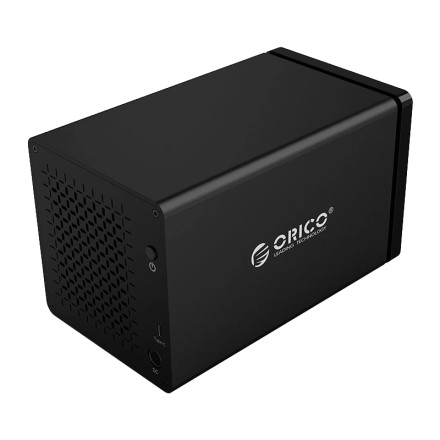
As no additional drivers are required here are some generic steps to diagnose the setup. Please not the maximum individual size drive is 16TB and there is a required 12volt 6.5A Power adapter that is included with the drive that has to be used. Not all USB Type C ports are data ports.
1. Check the basic connections
- Power off the ORICO enclosure.
- Reseat the power adapter and USB data cable.
- Try a different USB port on the computer.
- If possible, try a different USB cable.
- Avoid USB hubs during testing.
2. Test with only one drive
Remove all drives and install one known-working HDD or SSD. Test each bay individually.
This helps determine whether the problem is:
- A specific drive
- One faulty bay
- The enclosure controller
- The power supply
3. Check Windows Disk Management
Press Windows + X → Disk Management.
Look for the drive:
- If it appears as Offline, bring it online.
- If it appears as Unknown/Not Initialized, initialize it if it contains no needed data.
- If it has no drive letter, assign one.
- If it does not appear at all, continue with the hardware checks.
4. Check Device Manager
Open Device Manager and check under:
- Disk drives
- Universal Serial Bus controllers
- Storage controllers
Look for an unknown device or warning icon. Right-click the device and try Uninstall device, then disconnect and reconnect the ORICO enclosure.
5. Test every drive bay separately
Using the same known-working drive:
- Insert it into Bay 1 and test.
- Shut down or safely disconnect the enclosure.
- Move the same drive to Bay 2.
- Repeat through all bays.
If the drive works in some bays but not others, you may have a faulty SATA connector or individual bay issue.
6. Check the power supply
Multi-bay HDD enclosures can fail to detect drives if the power adapter is weak or defective.
Check whether:
- The enclosure powers on normally.
- Drive LEDs illuminate.
- Drives spin up.
- The enclosure disconnects when multiple drives are installed.
If it works with one drive but fails with several, the power supply could be the issue.
7. Try another computer
Connect the NS400RC3 directly to another Windows PC. If it works there, the issue may be related to the original computer's USB controller, drivers, or power settings.
8. Check USB power-saving settings
In Device Manager → Universal Serial Bus controllers, open the USB Root Hub or Generic USB Hub properties.
Under Power Management, temporarily uncheck:
Allow the computer to turn off this device to save power
Then restart and test the enclosure again.
9. Listen and observe
Pay attention to what happens when a drive is inserted:
- Drive spins up but isn't detected: Possible SATA connection, controller, partition, or driver issue.
- Drive repeatedly spins up/down: Often a power or connection problem.
- No activity in one bay only: Possible faulty bay.
- No drives detected in any bay: Check the power adapter, USB cable, enclosure controller, and computer connection.
If you want, you can upload a photo of the ORICO NS400RC3 connected to the drives and computer, especially showing the LEDs and connections, and I can help narrow down the likely failure.



