
Defragmenting a computer can improve performance on traditional hard disk drives (HDDs) by reorganizing fragmented files so they are stored more efficiently. However, you should not manually defragment a Solid State Drive (SSD), as SSDs work differently and do not benefit from traditional defragmentation.
Step 1: Check Whether You Have an HDD or SSD
- Press Windows + S.
- Type Defragment and Optimize Drives.
- Open the tool.
- Look at the Media type column.
- Hard disk drive = Defragmentation can help.
- Solid state drive = Windows automatically optimizes it.
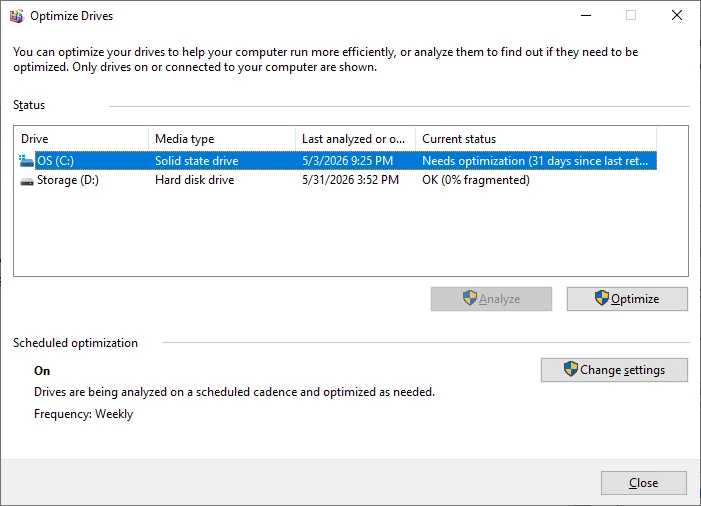
Step 2: Open the Optimize Drives Tool
- Press Windows + S.
- Search for Defragment and Optimize Drives.
- Click the result.
Step 3: Analyze the Drive
- Select the drive you want to optimize (usually C:).
- Click Analyze (available on many HDDs).
- Windows will display the fragmentation percentage.
Generally:
- Less than 5%: No action needed.
- 5–10%: Optional.
- Over 10%: Defragmentation may help.
Step 4: Defragment the Drive
- Select the HDD.
- Click Optimize.
- Wait for the process to complete.
The time required depends on:
- Drive size
- Fragmentation level
- Drive speed
It can take anywhere from a few minutes to several hours.
Schedule Automatic Optimization
Windows 11 automatically maintains drives by default.
To verify:
- Open Defragment and Optimize Drives.
- Click Change settings.
- Ensure Run on a schedule is checked.
- Select Weekly for most users.
Command Line Method
You can also optimize drives using Command Prompt:
- Open Command Prompt as Administrator.
- Run:
defrag C: /OThe /O switch tells Windows to perform the appropriate optimization for the drive type.
Important Notes
- Defragment HDDs if they are heavily fragmented.
- Do not use third-party defrag tools on SSDs.
- If your computer feels slow and uses an SSD, defragmentation is unlikely to help. Startup programs, low RAM, malware, or an aging system are more common causes.
If You're Using Windows 11
Most Windows 11 systems use SSDs and already perform optimization automatically. If your PC is slow, it may be more effective to:
- Remove unnecessary startup programs.
- Free up disk space.
- Update drivers.
- Check for malware.
- Upgrade RAM if possible.
To see what type of drive you have right now:
- Press Ctrl + Shift + Esc.
- Click Performance.
- Select Disk 0.
Windows will display whether it's an HDD or SSD. If you tell me your PC model or what it shows there, I can recommend whether defragmentation is worth doing.



