
Keeping your Dell drivers up to date is one of the easiest ways to fix hardware issues, improve performance, and ensure your system runs smoothly. Whether you're dealing with Wi-Fi problems, audio issues, or slow performance, this complete guide will walk you through everything you need to know on Windows 11.
Why Updating Dell Drivers Matters
Drivers act as the bridge between your hardware and operating system. Outdated or missing drivers can cause:
- Slow performance
- Hardware not working (Wi-Fi, Bluetooth, audio)
- System crashes or instability
- Compatibility issues after Windows updates
Updating them keeps your system stable and efficient.
Method 1: Use Dell SupportAssist (Easiest Method)
The simplest way to manage drivers is with Dell SupportAssist.
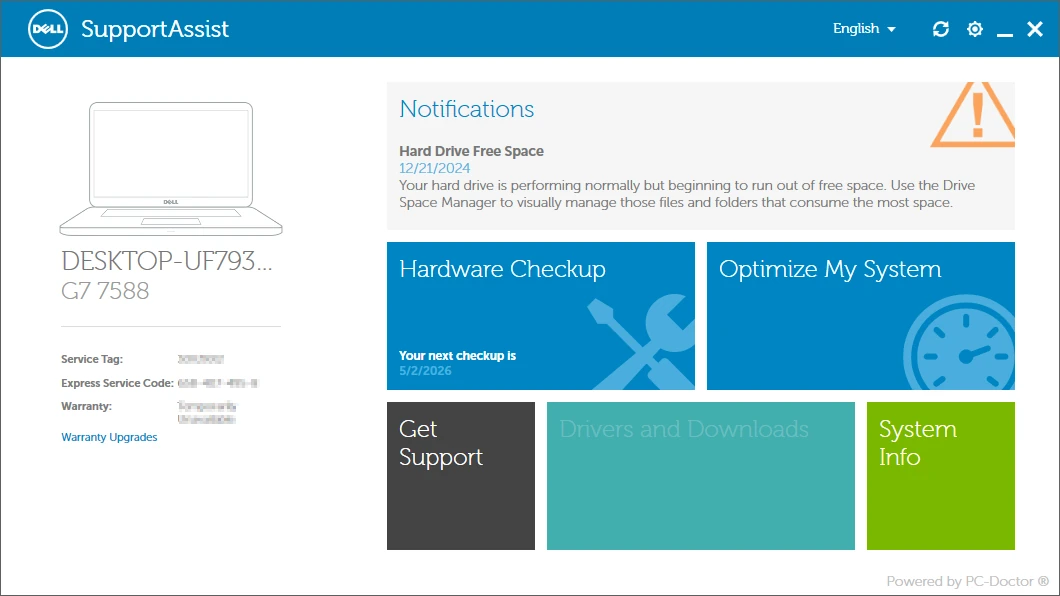
Steps:
- Open SupportAssist (search it in Start)
- Click Run All or Check for Updates
- Let it scan your system
- Click Install on recommended driver updates
- Restart your PC if prompted
👉 This tool automatically detects your model and installs the correct drivers.
Method 2: Download Drivers from Dell Website
If you prefer manual control, use the official Dell support site.
Step 1: Find Your Dell Model
- Check the sticker on your laptop/desktop
- Or press Windows + R, type
msinfo32, and find your model
Step 2: Go to Dell Support
- Visit Dell’s support page
- Enter your Service Tag or model
- Click Drivers & Downloads
Step 3: Download Drivers
- Select Windows 11 as your OS
- Download key drivers such as:
- Chipset
- Graphics
- Network (Wi-Fi/Ethernet)
- Audio
Step 4: Install Drivers
- Open the downloaded file
- Follow the installation steps
- Restart your PC after installation
👉 Install chipset drivers first for best results.
Method 3: Update Drivers via Windows Update
Windows can install basic drivers automatically:
- Open Settings
- Go to Windows Update
- Click Check for updates
- Install any available driver updates
Best Order to Install Dell Drivers
For a clean setup, follow this order:
- BIOS (if needed)
- Chipset
- Storage drivers
- Graphics drivers
- Network drivers
- Audio and others
How to Check if Drivers Are Installed Correctly
- Right-click Start → Device Manager
- Look for any yellow warning icons
- Right-click a device → Properties → Driver tab to view details
Common Driver Issues (and Fixes)
Problem: Wi-Fi not working
👉 Install the latest network driver from Dell
Problem: No sound
👉 Reinstall audio driver and restart
Problem: Poor graphics performance
👉 Update GPU drivers (Intel/NVIDIA/AMD)
Pro Tips for Better Performance
- Only download drivers from official sources (Dell)
- Avoid random “driver updater” tools
- Restart after installing multiple drivers
- Keep drivers updated monthly
Final Thoughts
Updating Dell drivers on Windows 11 doesn’t have to be complicated. Whether you use SupportAssist for automation or download drivers manually, keeping your system updated ensures better performance, fewer errors, and a smoother overall experience. Like we always do at oemdrivers, we recommend checking out the manufactures site first and if you can't find what you are looking for contact us, and we will always find what you need.



