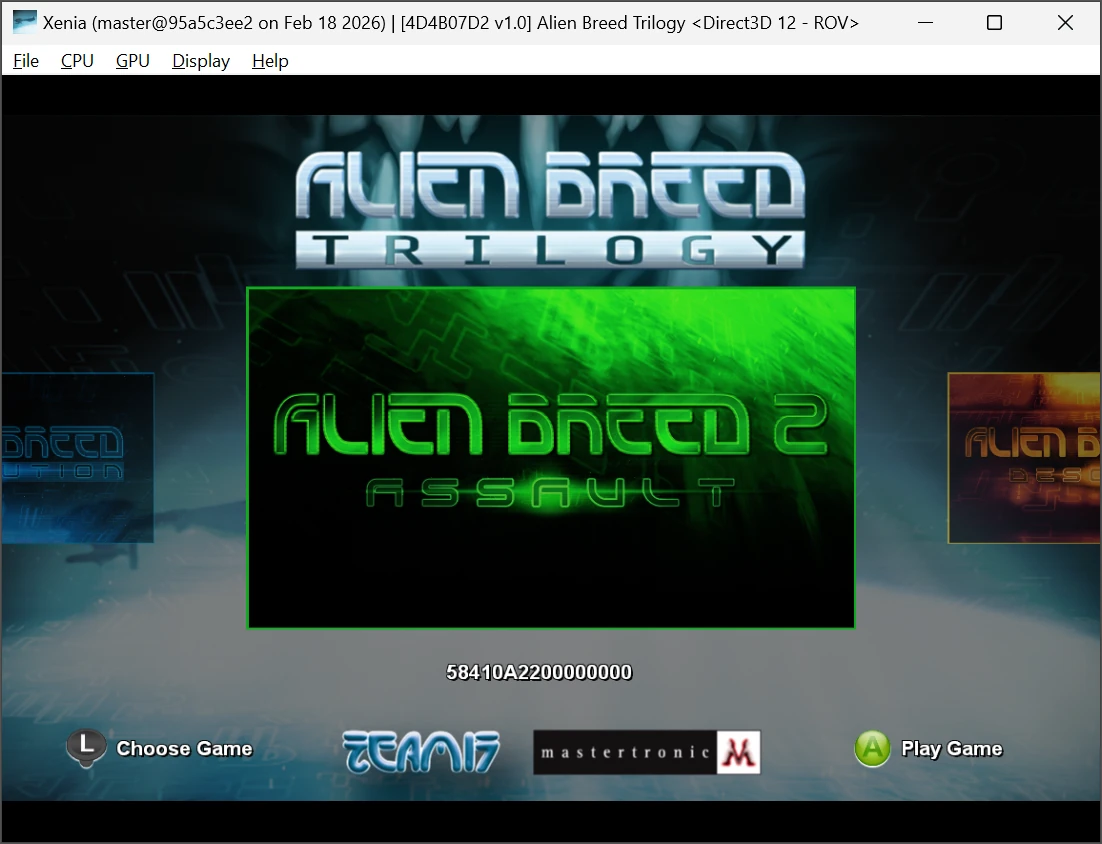
We have done pretty thorough work covering gamepad drivers, but we though it was time to touch on what the gamepads especially retro ones are used and that is emulation. If you are new to all this, basically Emulation is the ability to have a piece of software run on a system that that it wasn't designed for and in this case it is the Xbox 360 made by Microsoft a gaming system that came out 2005. While we concentrate on Windows 11 running such an emulator, the procedure is the same for Windows 10, 8.1, 8 and 7.
For this tutorial the assumption is made that you have the original game media, and then have found a backup of the disc in ISO or extracted all the files and folders. For this tutorial we will use Alien Breed Trilogy which we have extracted all the files. As Windows is using a standard DVD ROM drive can't read the Xbox 360 format. More information on why that is here: Why Can’t Windows Read Xbox 360 DVD Discs?
With that said let's dive in!
The Emulator (xenia)
We are going to stick to one emulator, and that is xenia. This opensource emulator runs on Windows 7 onward. Let us start by downloading it from here: https://xenia.jp/
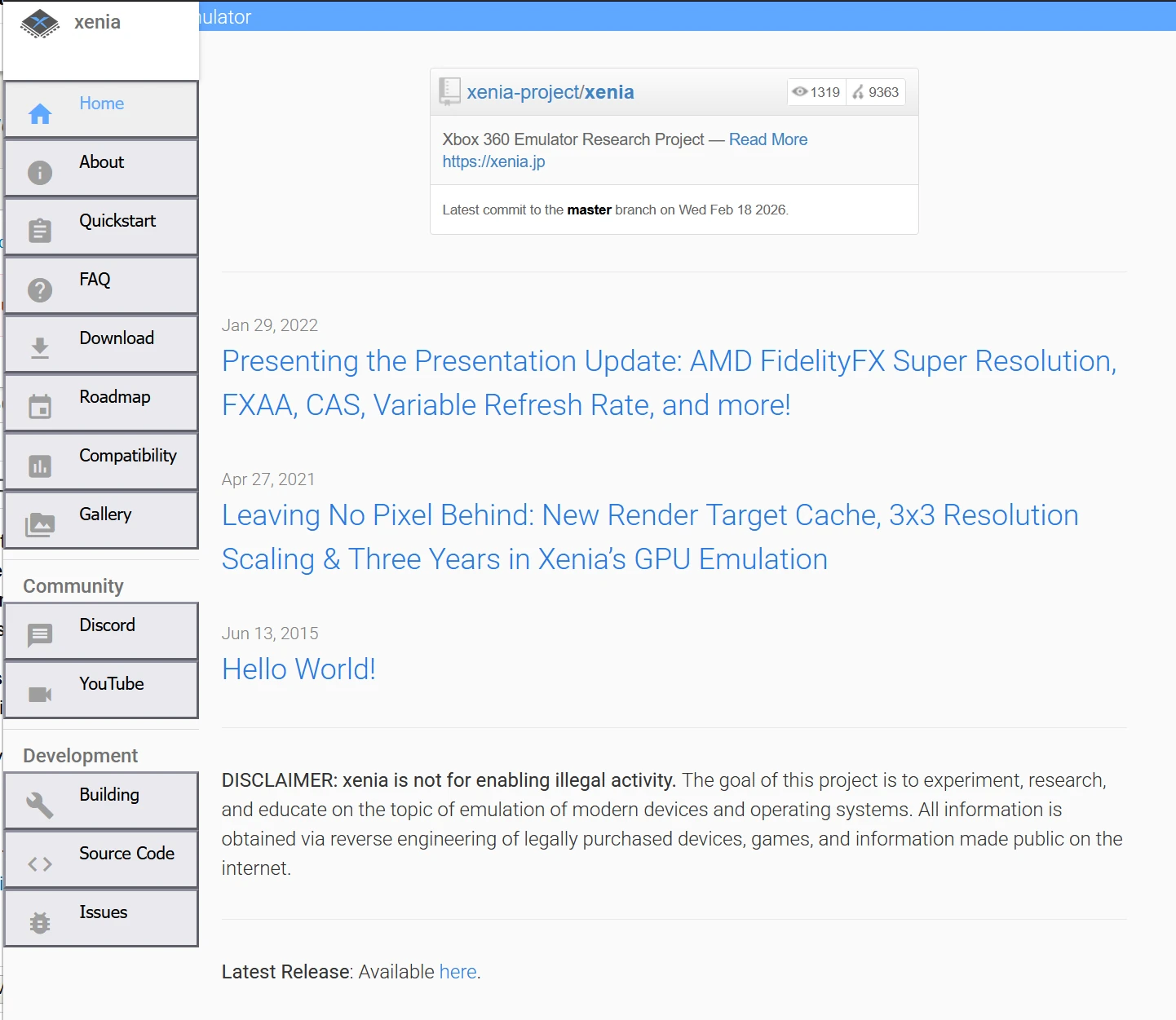
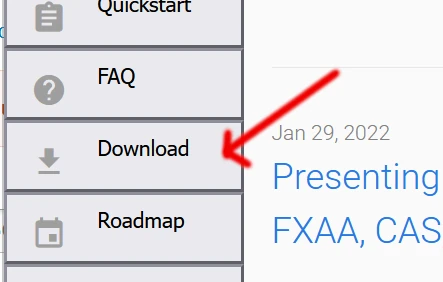
Once we have loaded the website, go to Download
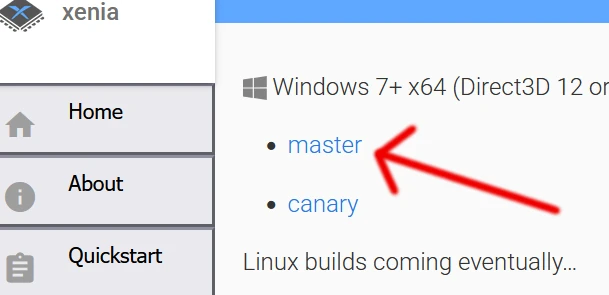
Then to download the zip archive click master
Save the xenia_master.zip to a location on your computer:
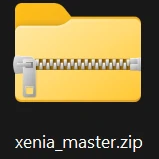
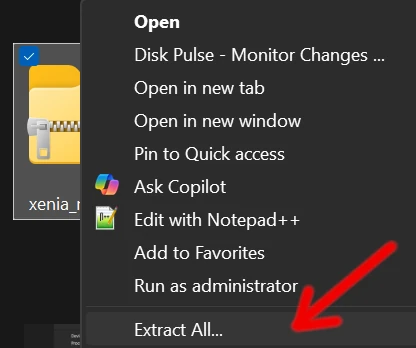
Extract this xenia_master.zip using Windows Explorer, right click, Extract All
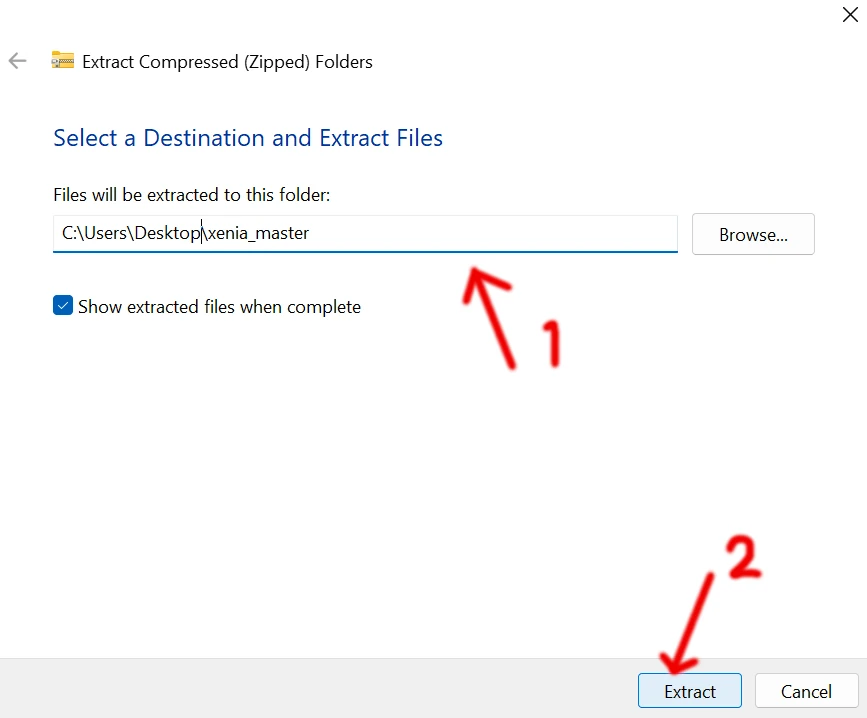
Next choose a location as where to access the emulator:
Once extracted, go into the location we have extract and see the files, were are looking for xenia (xenia.exe) double click this file.
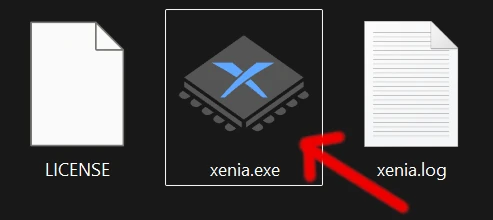
The Xenia emulator will load.
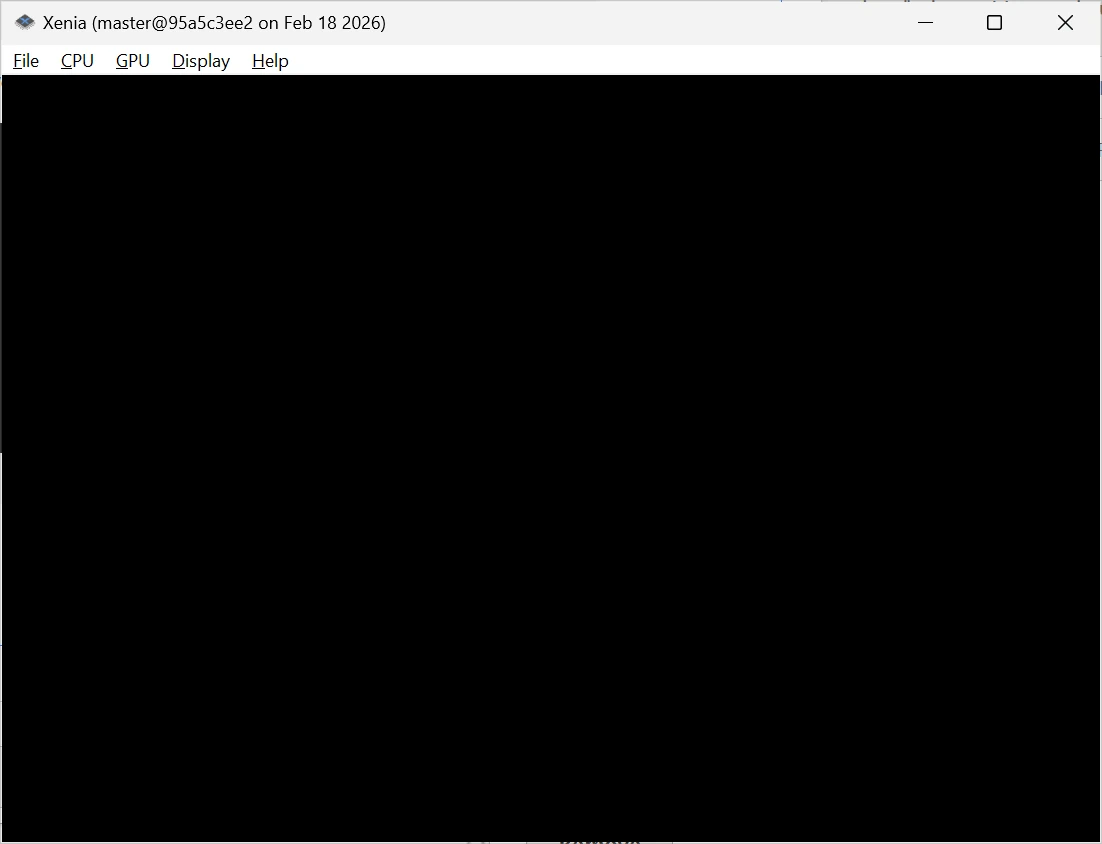
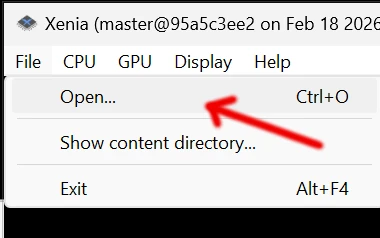
Now that the emulator is open we can select our game that is located on the computer by clicking File -> Open
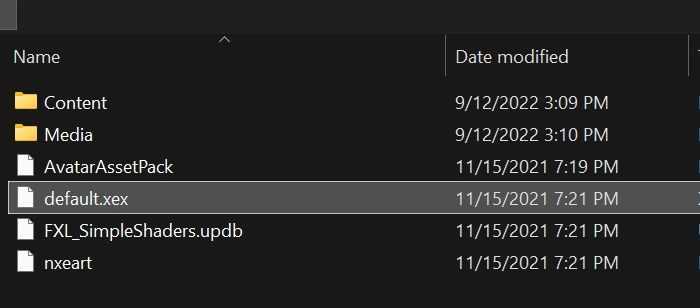
Then either find the .ISO file for the game that you have or select the extracted game all the files by selection the .xex at the root for the extracted files.
After clicking OK the game should load, plug in your gamepad and enjoy!