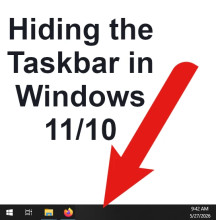
Many Windows users want to remove the long bar that sits at the bottom of the screen but do not know its actual name. That bar is officially called the Taskbar, and it contains the Start menu, pinned apps, clock, notifications, Wi-Fi, sound controls, and open programs.

Some users accidentally make it too large, move it to another side of the screen, or simply want it hidden for more space while gaming, watching videos, or working.
This guide explains how to get rid of the bottom bar on Windows 11 and Windows 10, including how to hide it, shrink it, fix problems, and restore it if it disappears completely.
What Is the Bottom Bar Called?
The bar at the bottom of Windows is called the:
Windows Taskbar
The Taskbar usually contains:
- Start button
- Search
- Open applications
- File Explorer
- Clock and date
- Wi-Fi and sound icons
- Notification area
- System tray
Method 1: Automatically Hide the Bottom Bar (Windows 11)
This is the most common solution.
The bar disappears until you move your mouse to the bottom of the screen.
Steps
- Right-click an empty area on the bottom bar
- Select:
- Taskbar settings
- Expand:
- Taskbar behaviors
- Enable:
- Automatically hide the taskbar
The taskbar will now slide away automatically.
To temporarily bring it back:
- Move your mouse cursor to the bottom edge of the screen
Method 2: Automatically Hide the Bottom Bar (Windows 10)
Steps
- Right-click the bottom bar
- Select:
Taskbar settings
Image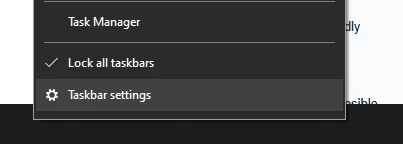
- Turn ON:
Automatically hide the taskbar in desktop mode
Image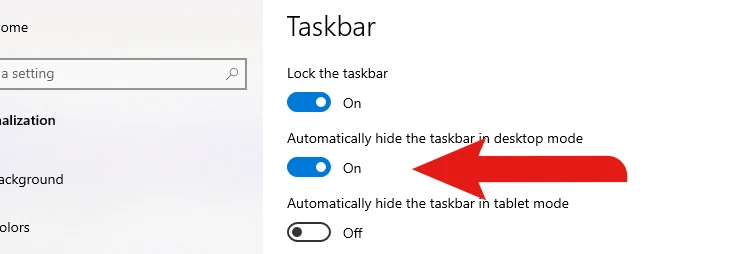
If using a touchscreen device:
- You may also enable:
- “Automatically hide the taskbar in tablet mode”
Method 3: Make the Bottom Bar Smaller
Some users do not want the taskbar hidden completely but prefer it thinner.
Windows 11
Windows 11 has limited built-in resizing options, but reducing icon size helps.
Steps
- Right-click the desktop
- Select:
- Display settings
- Lower:
- Scale
Smaller scaling reduces taskbar size.
Windows 10
Windows 10 allows smaller taskbar buttons directly.
Steps
- Right-click the taskbar
- Select:
- Taskbar settings
- Enable:
- Use small taskbar buttons
Method 4: Move the Bottom Bar
Some users accidentally move the taskbar to the side or top of the screen.
Windows 10
- Right-click the taskbar
- Disable:
- Lock the taskbar
- Click and drag the bar back to the bottom
- Right-click again
- Re-enable:
- Lock the taskbar
Windows 11
Windows 11 officially locks the taskbar to the bottom without third-party modifications.
Fix: Bottom Bar Will Not Hide
Sometimes the taskbar stays visible even when auto-hide is enabled.
Common Causes
- Notifications
- Background apps
- Frozen Windows Explorer
- System tray alerts
- Media playback controls
Fix 1: Restart Windows Explorer
- Press:
- Ctrl + Shift + Esc
- Open:
- Task Manager
- Find:
- Windows Explorer
- Right-click it
- Select:
- Restart
This fixes many taskbar glitches instantly.
Fix 2: Close Notification Apps
Apps such as:
- Discord
- Teams
- Outlook
- Steam
- Messaging apps
can force the taskbar to remain visible.
Close notifications or restart the apps.
Fix 3: Disable Taskbar Widgets
Windows widgets sometimes interfere with taskbar hiding.
Windows 11
- Right-click the taskbar
- Open:
- Taskbar settings
- Disable:
- Widgets
- Chat
- Copilot (if enabled)
Fix: Bottom Bar Completely Missing
If the taskbar vanished entirely:
Try These Steps
Press the Windows Key
The taskbar may simply be hidden.
Restart Explorer
Use Task Manager to restart Windows Explorer.
Check Display Settings
Multiple monitors can sometimes move the taskbar to another screen.
Full Screen Mode vs Hidden Taskbar
Many apps and games use full screen mode, which temporarily removes the taskbar automatically.
Common Shortcut
Press:
F11
This often enables fullscreen mode in browsers and some applications.
Why People Hide the Taskbar
Users commonly hide the taskbar to:
- Increase screen space
- Watch videos without distractions
- Improve gaming immersion
- Reduce desktop clutter
- Make laptops feel less cramped
- Create a cleaner appearance
Windows 11 vs Windows 10 Taskbar Differences
Windows 11 introduced a redesigned taskbar with:
- Centered icons
- Simplified menus
- Limited customization
- New widgets integration
Windows 10 provides more control over sizing and placement.
Final Thoughts
The “bottom bar” on Windows is officially known as the Taskbar, and it can easily be hidden, resized, or adjusted in both Windows 11 and Windows 10.
For most users, enabling automatic hide mode is the fastest way to reclaim screen space while still keeping access to the Start menu and open applications whenever needed, but at the end of the day it is a personal choice.



