
Connecting a Windows 11 PC to a domain (like a company network using Active Directory) isn’t complicated, but there are a few requirements that are often overlooked.
✅ Before You Start
Make sure these are in place:
- You’re using Windows 11 Pro, Enterprise, or Education
(Home edition does NOT support domain join) - Your PC is connected to the same network as the domain (or via VPN)
- You have:
- Domain name (e.g.,
company.local) - A domain user account with permission to join devices
- Domain name (e.g.,
- Your system can reach a Domain Controller running Windows Server
🔧 Step 1: Open System Settings
- Press Windows + I to open Settings
- Go to:
System → About Scroll down and click:
“Domain or workgroup” (under Device specifications)Image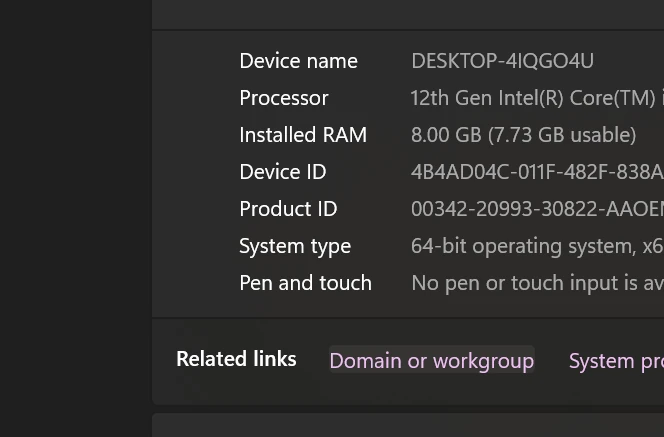
🔗 Step 2: Start Domain Join
- In the System Properties window, click:
“Change” - Select:
- 🔘 Domain
- Enter your domain name
Example:company.local
🔑 Step 3: Enter Credentials
- When prompted, enter:
- Username:
domain\usernameor[email protected] - Password: Your domain password
- Username:
👉 Example:
company\jsmith
🏷️ Step 4: Assign Computer Name (Optional)
- You may be asked to:
- Confirm or change the PC name
Use something identifiable like:
OFFICE-PC-01
🔁 Step 5: Restart the Computer
- You’ll be prompted to restart
- Click Restart Now
🔐 Step 6: Log Into the Domain
After reboot:
- On the login screen, click:
Other user Enter your domain credentials:
company\usernameor
✅ Confirm You Joined Successfully
After logging in:
- Press Windows + R
Type:
sysdm.cpl- Check:
- “Domain: company.local” should appear
⚠️ Common Issues & Fixes
❌ “Domain not found”
- Check DNS settings (must point to domain controller)
Try pinging the domain:
ping company.local
❌ “Access denied”
- Your account may not have permission to join devices
- Contact your IT admin
❌ Time mismatch error
- Domain joins require synced time
Fix with:
w32tm /resync
❌ Can’t find domain controller
- Ensure you're:
- On the company network
- Connected via VPN if remote
💡 Pro Tips
- Domain join automatically applies:
- Group policies
- Security settings
- Company restrictions
- You can leave a domain anytime via the same settings page
- IT admins often manage domains using tools like Group Policy
🧠 Quick Alternative Method (Command Line)
Open Command Prompt as admin and run:
netdom join %computername% /domain:company.local /userd:username /passwordd:*



