
How to Know It Is Time to Defrag Your Laptop
For modern laptops, the most important question is not “How fragmented is the drive?” but “Is the drive an HDD or an SSD?” Traditional defragmentation is useful only for mechanical hard drives (HDDs). Solid-state drives (SSDs) should not be manually defragmented; Windows automatically performs the appropriate optimization (TRIM) for SSDs.
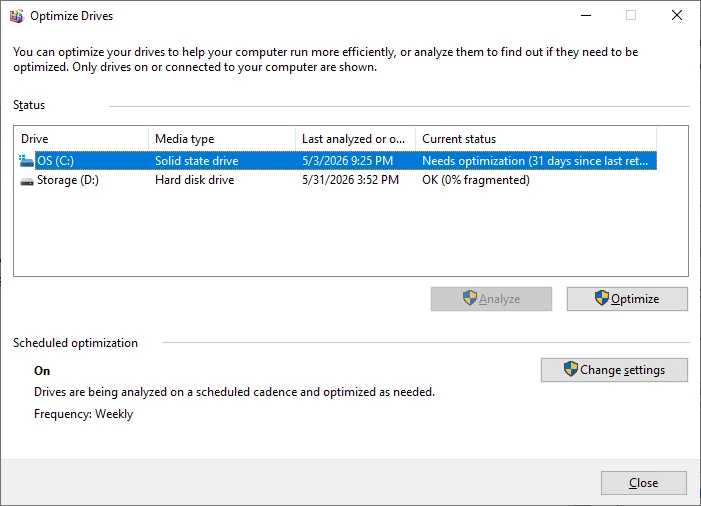
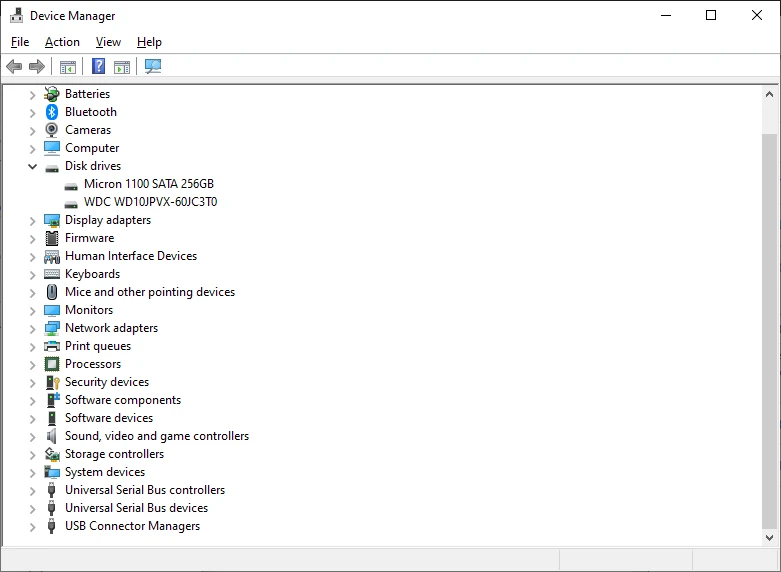
Step 1: Check Whether Your Laptop Has an HDD or SSD
- Press Windows + S and search for Defragment and Optimize Drives.
- Open the tool and look at the Media type column.
- If it says Hard disk drive, defragmentation may be beneficial.
- If it says Solid state drive, do not manually defrag it. Windows already handles optimization automatically.
Signs It May Be Time to Defrag (HDD Only)
If your laptop uses a mechanical HDD, defragmentation can help when files have become heavily scattered across the disk. Common indicators include:
| Sign | What it means |
|---|---|
| File operations feel slower than they used to | Large files take noticeably longer to open, save, or copy. |
| Game or application load times have increased | Especially after months of installing and uninstalling software. |
| Disk activity stays high for long periods | The HDD light (or disk usage in Task Manager) remains busy during simple tasks. |
| Windows reports significant fragmentation | The Optimize Drives tool shows a high fragmentation percentage. |
| The drive is nearly full and has been heavily used for years | Frequent file changes on a crowded HDD can increase fragmentation. |
Important: Slow does not automatically mean “fragmented.”
On modern systems, startup programs, low RAM, malware, overheating, failing hardware, or an aging HDD are often bigger performance problems than fragmentation.
How to Measure Fragmentation in Windows 11
- Open Defragment and Optimize Drives.
- Select the HDD.
- Click Analyze (if available).
- Review the fragmentation percentage.
| Fragmentation level | Recommendation |
|---|---|
| 0–5% | No action needed. |
| 5–10% | Optional; usually not urgent. |
| 10–20% | Consider defragmenting if performance has degraded. |
| 20%+ | Defragmentation is generally worthwhile on an HDD. |
Windows may already be running scheduled optimization, so many systems never reach very high fragmentation levels.
When You Should NOT Defrag
- Your laptop has an SSD (NVMe or SATA SSD).
- The drive is showing signs of hardware failure (clicking noises, SMART warnings, bad sectors). Back up data first.
- Performance problems began suddenly after a driver, Windows, or software update. Fragmentation does not appear overnight.
- You are using third-party “aggressive optimization” tools that promise huge speed boosts. They can cause unnecessary wear and rarely outperform Windows’ built-in maintenance.
How to Defrag Safely (HDD Only)
- Plug the laptop into AC power.
- Close large applications.
- Open Defragment and Optimize Drives.
- Select the HDD.
- Click Optimize.
- Let the process finish; interrupting it is not ideal.
- Reboot if Windows requests it.
For most home users, the built-in Windows tool is all you need.
The Short Answer
- HDD + noticeable slowdowns + fragmentation above ~10%: yes, it is probably time to defrag.
- SSD: no manual defrag; let Windows handle optimization automatically.
- Unsure which drive you have: check Defragment and Optimize Drives or Task Manager → Performance → Disk 0.
If you tell me your laptop model or whether Windows shows HDD or SSD, I can give a device-specific recommendation.



