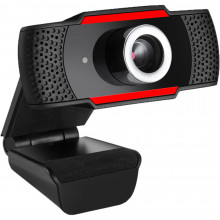
If your webcam is not working in Windows 11, the problem may possibly not be the camera itself. Windows 11 includes privacy settings that can block apps from accessing your webcam, causing video calls, meetings, and recording software to display a black screen reporting that no camera is detected/or found.
This guide explains how to check Windows 11 privacy settings and restore camera access.
Signs That Privacy Settings Are Blocking Your Webcam
You may be experiencing one or more of the following issues:
- Camera works in some applications but not others.
- Microsoft Teams, Zoom, Discord, or Skype cannot detect the camera.
- A message appears stating that camera access is blocked.
- The webcam light never turns on.
- The Camera app shows a black screen.
Before reinstalling drivers, it is worth checking Windows privacy settings.
Step 1: Open Camera Privacy Settings
- Click the Start Menu.
- Open Settings.
- Select Privacy & Security.
- Scroll down and click Camera under App Permissions.
You should see several camera access options.
Step 2: Enable Camera Access
At the top of the Camera settings page, ensure:
- Camera access is turned On.
If this setting is disabled, no applications will be able to use the webcam.
Step 3: Allow Apps to Access the Camera
Under Camera access, verify that:
- Let apps access your camera is turned On.
This setting controls whether modern Windows applications can use your webcam.
Step 4: Check Individual App Permissions
Scroll through the list of installed applications.
Ensure camera access is enabled for programs such as:
- Microsoft Teams
- Zoom
- Discord
- Skype
- OBS Studio
- Camera App
- Google Meet (through supported browsers)
If the application you want to use is listed, make sure its toggle is enabled.
Step 5: Allow Desktop Apps to Access the Camera
Near the bottom of the Camera settings page, verify:
- Let desktop apps access your camera is turned On.
Many traditional Windows programs rely on this setting. If it is disabled, applications such as Zoom, OBS Studio, and older video conferencing software may not be able to access the webcam.
Step 6: Test the Camera
Windows 11 includes a built-in Camera application.
To test your webcam:
- Press Windows + S.
- Type Camera.
- Open the Camera app.
If the camera image appears, the webcam is functioning correctly and the issue may be limited to a specific application.
Step 7: Check Device Manager
If privacy settings are correct but the webcam still does not work:
- Right-click the Start button.
- Select Device Manager.
- Expand Cameras.
Look for your webcam device.
If you see:
- A yellow warning icon, reinstall the driver.
- An unknown device, install the correct webcam driver from your laptop or webcam manufacturer.
- No camera listed at all, the webcam may be disabled in BIOS/UEFI settings or disconnected.
Step 8: Update Webcam Drivers
Outdated or missing drivers can prevent a webcam from functioning properly.
To update:
- Open Device Manager.
- Right-click the webcam.
- Select Update Driver.
- Choose Search automatically for drivers.
For the latest drivers, visit your computer manufacturer's support website and download the webcam drivers designed for your specific model.
Step 9: Check Browser Permissions
If your webcam works in the Camera app but not on websites:
Google Chrome
- Open Chrome.
- Go to Settings.
- Select Privacy and Security.
- Click Site Settings.
- Open Camera.
- Verify the correct webcam is selected and access is allowed.
Microsoft Edge
- Open Edge.
- Go to Settings.
- Select Cookies and Site Permissions.
- Click Camera.
- Ensure websites are allowed to request camera access.
Final Thoughts
Windows 11 privacy controls are one of the most common reasons webcams stop working. In many cases, simply enabling Camera Access and allowing apps to use the webcam resolves the issue immediately. If the camera still does not function after checking privacy settings, the next steps are to verify the device in Device Manager and install the latest webcam drivers from the hardware manufacturer.
By following these steps, most Windows 11 webcam problems can be resolved without replacing hardware or reinstalling the operating system.



