
How To Take a Screenshot on Windows 11 (Step-By-Step Guide!)
Taking a screenshot on Windows 11 is quick and easy once you know the shortcuts. Whether you want to capture the full screen, a specific window, or just a small area, there are several simple ways to do it.
Method 1: Use the Print Screen (PrtScn) Key
Step 1: Press the PrtScn key
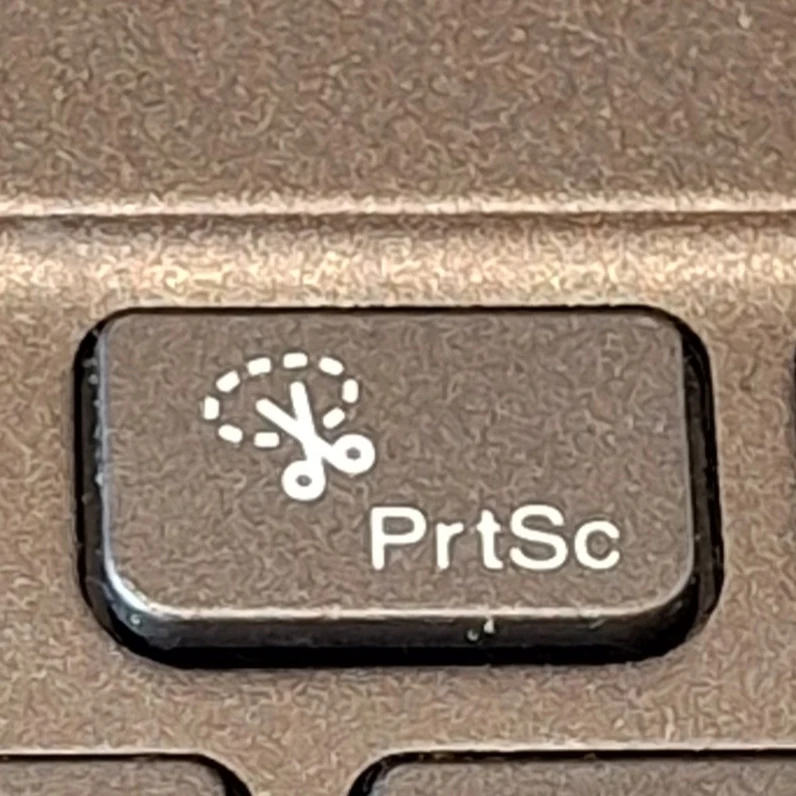
This captures your entire screen.
Step 2: Paste the screenshot
Open an app like Paint or Word and press Ctrl + V to paste it.
👉 This method copies the screenshot to your clipboard (it doesn’t save automatically).
Method 2: Save Screenshot Instantly
Step 1: Press Windows + PrtScn
Your screen will briefly dim, showing the screenshot was taken.
Step 2: Find your screenshot
Go to:
Pictures > Screenshots
👉 This method automatically saves the image as a file.
Method 3: Capture Just One Window
Step 1: Click the window you want
Make sure it’s active.
Step 2: Press Alt + PrtScn
This captures only that window.
Step 3: Paste it
Use Ctrl + V in any app.
Method 4: Use the Snipping Tool (Best Option)
Step 1: Press Windows + Shift + S
Your screen will dim, and a small toolbar appears.
Step 2: Choose a snip type
- Rectangle
- Freeform
- Window
- Full screen
Step 3: Select the area
The screenshot is copied to your clipboard.
Step 4: Click the preview
Edit or save it using the Snipping Tool.
Method 5: Use the Snipping Tool App
Step 1: Search for “Snipping Tool”
Open it from the Start menu.
Step 2: Click New
Choose your capture area.
Step 3: Edit and save
You can crop, highlight, or save your screenshot.
Bonus: Use Xbox Game Bar
Step 1: Press Windows + G
Step 2: Click the Capture button
Or press Windows + Alt + PrtScn
👉 Great for capturing games or apps.
Where Are Screenshots Saved?
- Windows + PrtScn:
Pictures > Screenshots - Game Bar:
Videos > Captures - Other methods:
Clipboard only (you must paste and save manually)
Quick Tips
- Use Snipping Tool for more control
- Rename screenshots to stay organized
- Use keyboard shortcuts to save time
- Screenshots are saved as PNG files by default
Final Thoughts
Windows 11 gives you several easy ways to take screenshots, whether you want something quick or more precise. Once you get used to the shortcuts, capturing your screen becomes second nature.
If you take screenshots often, the Windows + Shift + S shortcut is the fastest and most flexible option.



