
If your Windows 11 PC feels slow, laggy, or cluttered with apps you never use, you’re not alone. A big reason is bloatware, background services, and built-in features that consume RAM and CPU.
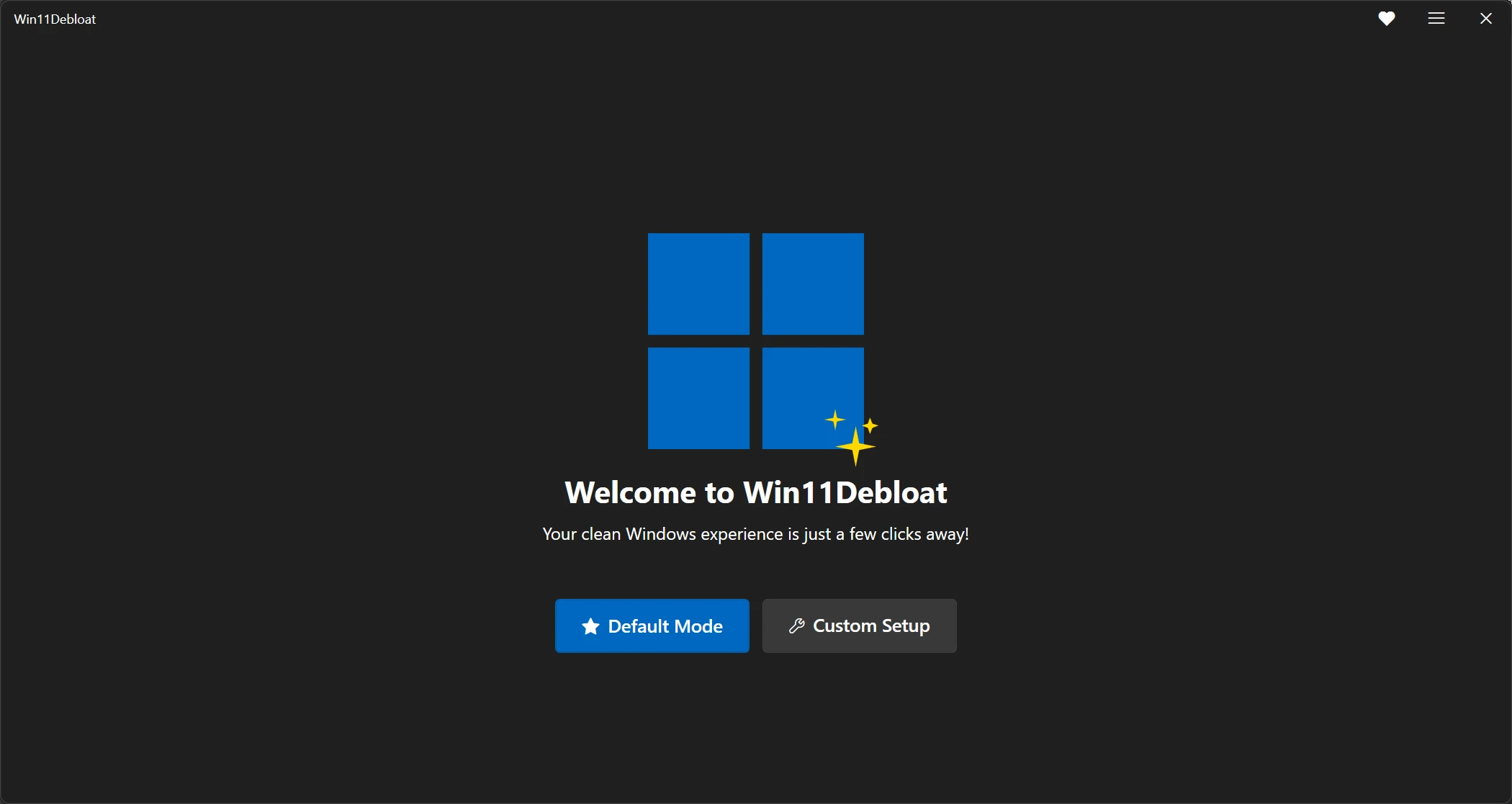
One of the easiest ways to clean things up is using Win11Debloat, a lightweight tool that removes unnecessary apps, disables tracking, and improves performance—all in a few minutes.
What is Win11Debloat?
Win11Debloat is a simple PowerShell-based script that helps you:
- Remove pre-installed apps (Xbox, Teams, etc.)
- Disable telemetry and tracking
- Turn off ads, widgets, and suggestions
- Improve overall system responsiveness
It works on both Windows 10 and Windows 11 and doesn’t require installing heavy third-party software. GitHub
⚠️ Before You Start (Important)
This tool makes system-level changes, so:
- Back up important files
- Create a restore point (recommended)
- Don’t remove apps you actually use
Method 1 (Recommended): Quick Run via PowerShell
This is the fastest and easiest way.
Step-by-step:
- Click Start
- Search for PowerShell
- Right-click → Run as administrator
- Copy and paste this command:
& ([scriptblock]::Create((irm "https://debloat.raphi.re/")))
- Press Enter (if you get an error, make sure you're running PowerShell as an administrator and there is no firewall blocking)
- Wait for the tool to download and launch automatically GitHub
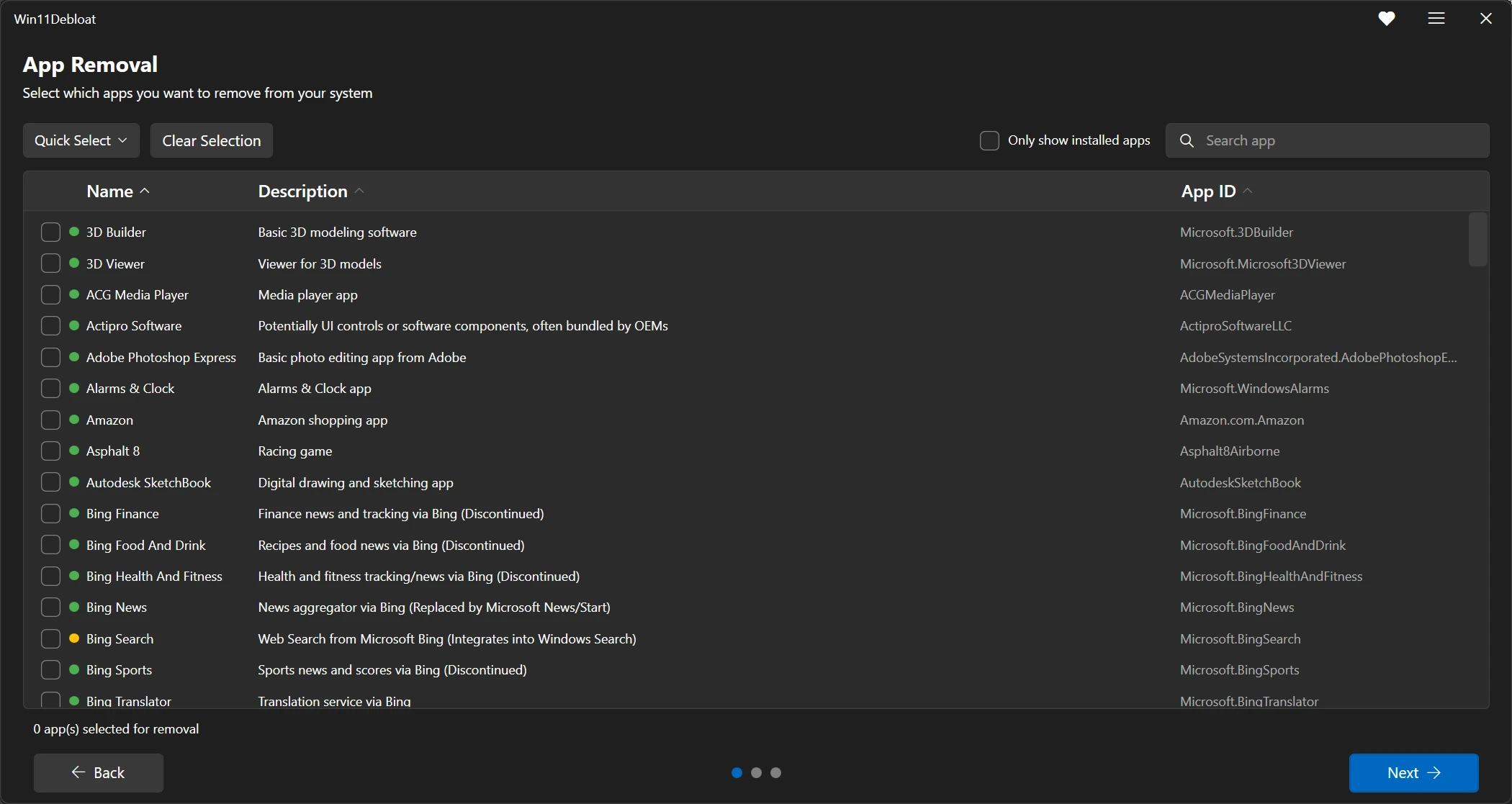
What Happens Next?
Once the script opens, you’ll see a simple menu with options:
1. Default Mode (Best for most users)
- Removes common bloatware
- Disables telemetry and ads
- Applies safe performance tweaks
👉 This is the easiest option if you just want a faster PC.
2. Custom Mode (Advanced users)
- Lets you choose exactly what to remove or disable
- Ideal if you want full control
Be careful here—read each option before selecting.
3. App Removal Mode
- Focuses only on uninstalling built-in apps
- Lets you pick what stays or goes
4. Apply Saved Settings
- Re-runs your previous setup instantly
Alternative Method (Manual Download)
If you prefer doing it manually:
- Download the script from GitHub
- Extract the ZIP file
- Open the folder
- Double-click Run.bat
- Accept the admin prompt
That’s it—the same menu will appear. GitHub
Pro Tip: Run It Automatically
Want a one-click cleanup?
You can run:
& ([scriptblock]::Create((irm "https://debloat.raphi.re/"))) -RunDefaults
This skips the menu and applies recommended settings instantly. GitHub
What Gets Removed or Disabled?
Depending on your choices, the script can:
- Remove apps like Xbox, Cortana, Teams
- Disable Bing search and Copilot
- Turn off background tracking and ads
- Remove widgets and unnecessary startup services
All of this reduces system load and improves speed.
Final Step: Restart Your PC
After the script finishes:
- Restart your computer
- Let changes fully apply
You should notice:
- Faster boot times
- Less background usage
- Cleaner interface
Does It Actually Make Windows Faster?
Yes—especially on:
- Older laptops
- Systems with limited RAM
- PCs loaded with pre-installed apps
But on high-end systems, the difference may be smaller.
Final Thoughts
If your Windows 11 PC feels slow, cluttered, or overloaded, Win11Debloat is one of the simplest ways to fix it. It cuts out unnecessary features and gives you a cleaner, faster system without reinstalling Windows.
Just remember: use the Default Mode if you’re unsure—it’s the safest option.



