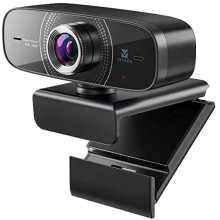
Device
Manufacturer
Model No.
HD826
Interface/port(s)
Video Technology
Operating System(s)
- Webcam Not Detected: Disconnect and reconnect the USB cable, try a different USB port, and avoid connecting through a USB hub.
- No Video / Black Screen: Open your camera application settings and confirm VITADE HD826 or USB Video Device is selected as the camera source.
- Camera Permissions: In Windows, go to Settings → Privacy & Security → Camera and enable camera access.
- Microphone Not Working: Select the webcam microphone as the audio input device in Windows sound settings or your video calling application.
- Poor Image Quality: Clean the lens, improve lighting, and check the application’s video resolution settings.
- Driver Problems: The HD826 uses standard USB Video Class (UVC) drivers included with Windows. In Device Manager → Cameras, uninstall the webcam device and reconnect it to reinstall the driver.
- Still Not Working: Test the webcam on another computer to determine whether the issue is with the webcam or the original PC.



