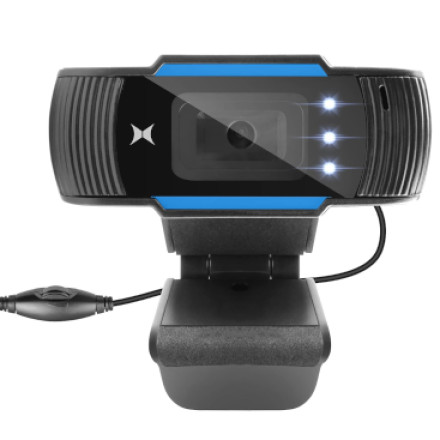
The XTREME XCA21007BLK Studio PRO Webcam is a plug-and-play USB webcam with a built-in microphone, 720p video, autofocus, automatic white balance, and adjustable LED lighting. It is designed to work without additional drivers or software.
Webcam Is Not Detected
- Disconnect the webcam from the computer.
- Connect it to another available USB port.
- If possible, connect it directly to the computer instead of through a USB hub.
- Restart Windows and reconnect the webcam.
- Open Device Manager and check Cameras, Imaging devices, or Sound, video and game controllers for the webcam.
If Windows still does not detect the camera, test the webcam on another computer to determine whether the problem is with the webcam or the original computer.
No Picture or Black Screen
If the webcam is detected but displays a black screen:
- Close applications that may already be using the camera.
- Open Windows Settings → Privacy & security → Camera.
- Make sure Camera access is enabled.
- Enable Let apps access your camera.
- Open the application you want to use and select the XTREME webcam as the camera source.
Applications such as video conferencing software may have their own camera-selection settings.
Webcam Works but the Picture Is Blurry
The XCA21007BLK includes autofocus, which is intended to keep the subject in focus.
Try the following:
- Clean the webcam lens with a soft, lint-free cloth.
- Make sure the lens is not covered by packaging or a protective film.
- Move slightly farther away from the camera.
- Provide additional lighting.
- Close and reopen the application using the webcam.
Poor lighting can also make the image appear soft or noisy even when the camera is functioning correctly.
Microphone Is Not Working
The webcam has a built-in microphone.
If the microphone does not work:
- Open Settings → System → Sound.
- Under Input, select the webcam's microphone if it is listed.
- Check the input volume.
- Verify that microphone access is enabled under Settings → Privacy & security → Microphone.
- Test the microphone using Windows Sound settings or the application's audio test.
Also check that the application has not selected a different microphone.
LED Lights Are Not Working
The Studio PRO Webcam includes three adjustable LED lights intended to provide additional illumination in darker environments.
If the lights do not operate, make sure the webcam is firmly connected to the USB port and that the computer is supplying power to the device. Try another USB port if necessary.
Video Quality Is Poor
The webcam supports 1280 × 720 video. If the image appears lower quality than expected:
- Check the application's camera resolution settings.
- Improve the lighting in front of the subject.
- Clean the camera lens.
- Make sure the correct webcam is selected.
- Close other applications that may be using significant system resources.
- Restart the video application.
Webcam Keeps Disconnecting
If the camera repeatedly disconnects:
- Try a different USB port.
- Avoid using an unpowered USB hub.
- Check the USB cable for visible damage.
- Disconnect other unnecessary USB devices temporarily.
- Restart the computer.
- Test the webcam on another computer.
If the webcam works normally on another computer, the issue is likely related to the original computer's USB configuration, Windows settings, or application.
Quick Troubleshooting Checklist
- No camera detected: Try another USB port.
- Black screen: Check Windows camera permissions and application settings.
- Blurry image: Clean the lens and improve lighting.
- No microphone: Select the webcam microphone in Windows Sound settings.
- Poor video: Check the application's resolution settings.
- LEDs not working: Check the USB connection and try another port.
- Camera disconnects: Test without a USB hub and try another computer.
The XCA21007BLK is designed as a plug-and-play webcam, so additional driver installation should normally not be required.



