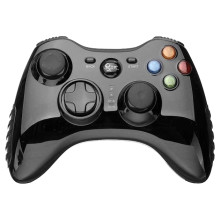
The Betop BTP-2185 2.4GHz Wireless Gamepad can be connected to your computer using either the included 2.4GHz wireless USB receiver (dongle) or a standard USB cable. The wireless receiver provides a stable, low-latency connection suitable for gaming, while the USB cable offers a wired connection that also charges the controller's internal battery if applicable.
To connect wirelessly, insert the supplied USB receiver into an available USB port on your Windows PC. Turn on the controller by pressing the power button or the appropriate Home button as described in the user manual. In most cases, the controller and receiver are already paired at the factory, and Windows will automatically detect the device and install the required drivers. After a few moments, the controller should be ready for use in compatible games.
If the wireless connection is unavailable or the receiver has been misplaced, you can connect the controller directly using a USB cable. Simply plug the cable into the controller and connect the other end to a USB port on your computer. Windows should detect the gamepad automatically without requiring additional software. A wired connection is also useful for charging the controller while you continue playing.
To verify that Windows has recognized the controller, open Control Panel → Devices and Printers, or search for Set up USB Game Controllers from the Windows Start menu. The Betop controller should appear in the list of installed game controllers, where you can test button presses, joystick movement, and vibration support.
If the controller is not detected, try a different USB port, replace the USB cable if using a wired connection, or reconnect the wireless receiver. Avoid connecting through an unpowered USB hub if possible, as this can sometimes prevent the controller from functioning correctly. In most cases, no additional drivers are required, as Windows includes built-in support for standard USB game controllers.



