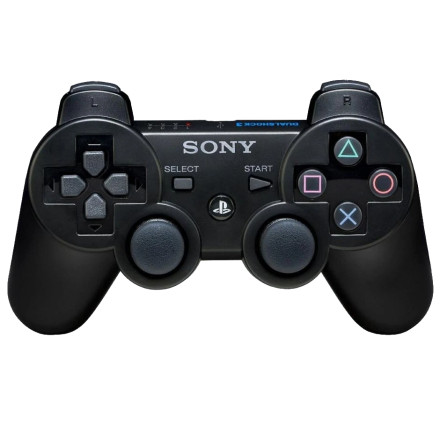
Sony DualShock 3 Controller Driver — Windows 11/10
The Nefarius DsHidMini driver provides support for official Sony DualShock 3 controllers on Windows 10 and Windows 11. For wireless Bluetooth operation, install BthPS3 as well. DsHidMini v3 supports USB and Bluetooth and can present the controller as an XInput device for compatible games.
Files (bottom of this page)
- DsHidMini:
Nefarius_DsHidMini_Drivers_x64_arm64_v3.5.1.msi - Bluetooth:
Nefarius_BthPS3_Drivers_x64_arm64_v2.17.0.msi
Important: BthPS3 is only needed for Bluetooth. For USB-only use, DsHidMini is sufficient. Nefarius specifically warns against pairing the controller through Windows' normal Bluetooth Add device dialog.
Install DsHidMini
- Download
Nefarius_DsHidMini_Drivers_x64_arm64_v3.5.1.msi. - Double-click the MSI and allow Windows UAC to make changes.
- Accept the license agreement and leave DsHidMini Drivers selected.
- Click Install and allow the installation to complete.
- Connect the DualShock 3 to the PC with a USB data cable.
- Windows should detect the controller and load DsHidMini automatically.
Install BthPS3 for Bluetooth
- Run
Nefarius_BthPS3_Drivers_x64_arm64_v2.17.0.msi. - Accept the license agreement and leave BthPS3 Bluetooth Drivers selected.
- Choose Modern hot-plug or Legacy sequential when prompted. Modern normally avoids a restart; Legacy requires one.
- Complete the installation and restart Windows if requested.
- Do not pair the DualShock 3 through Windows Bluetooth settings.
Pair the DualShock 3
- Make sure Bluetooth is enabled on the computer.
- Connect the DualShock 3 to the PC using USB.
- Allow DsHidMini/BthPS3 to perform the Bluetooth pairing.
- Disconnect the USB cable.
- Press the PS button on the controller.
- Windows should reconnect the controller wirelessly. Nefarius identifies USB connection as the supported method for pairing the controller to the Bluetooth host.
Test the controller
Press Win + R, type:
joy.cplPress Enter, select the controller, and choose Properties. Use the Test tab to check the analog sticks, buttons and other inputs. DsHidMini's documentation identifies the controller as a DS3 Compatible HID Device when working correctly.
Troubleshooting
If the controller does not appear, reconnect it by USB and check Device Manager → Nefarius HID Devices. DsHidMini v3 automatically handles several conflicting drivers, so the old manual cleanup procedures used by earlier versions generally aren't required.
Also note that DsHidMini is intended for official Sony DualShock 3/SIXAXIS hardware; compatibility with counterfeit or aftermarket controllers is not guaranteed.
Sources:
Nefarius DsHidMini documentation
Nefarius BthPS3 documentation
Nefarius DsHidMini Driver
File: Nefarius_DsHidMini_Drivers_x64_arm64_v3.5.1.msi
77295683e2ba57adf91afc54701c46f06a7a847f3621b15f2acfa7ea914fcf26
Nefarius BthPS3 Bluetooth Driver
File: Nefarius_BthPS3_Drivers_x64_arm64_v2.17.0.msi
db73155e3dd04b266cc2eb339ffca81efcd32216ce46cef52a8e7ebd1ed9f610



