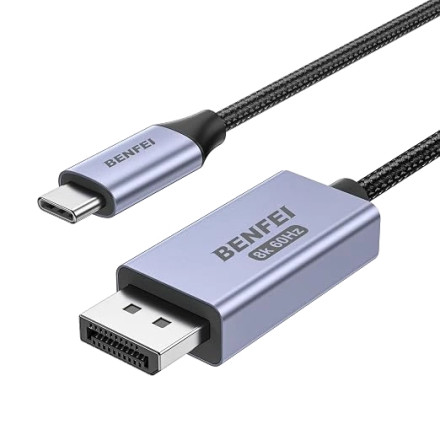
Basic Troubleshooting – BENFEI 000412GREY-6F Bidirectional USB-C to DisplayPort 1.4 Cable
The BENFEI 000412GREY-6F is a 6-foot bidirectional USB-C to DisplayPort 1.4 cable designed to connect compatible computers, laptops, and displays. It supports video resolutions up to 8K at 60Hz and is suitable for connecting external monitors, including high-resolution and high-refresh-rate displays.

If you experience a blank screen, intermittent display connection, or resolution problems, try the following troubleshooting steps.
1. Check USB-C Video Compatibility
Not all USB-C ports support video output. The computer's USB-C port must support DisplayPort Alternate Mode (DP Alt Mode) or Thunderbolt 3/4/5.
- Check your computer manufacturer's specifications.
- Look for a DisplayPort symbol or Thunderbolt lightning bolt near the USB-C port.
- A USB-C port that supports charging or data transfer only will not provide video output.
2. Check the Monitor Input
Make sure the monitor is configured to use the correct DisplayPort input.
- Open the monitor's on-screen menu.
- Locate Input Source.
- Select DisplayPort.
- Disconnect and reconnect the cable.
3. Reseat the Cable Connections
Disconnect both ends of the BENFEI cable and reconnect them securely. If possible, try another USB-C or DisplayPort port to rule out a faulty connection.
4. Check Windows Display Settings
If Windows detects the monitor but nothing appears on the screen:
- Right-click the Windows desktop and select Display settings.
- Scroll to Multiple displays.
- Click Detect.
- Press Windows + P and select Duplicate or Extend.
- Select the external monitor and verify its resolution and refresh rate.
5. Reduce the Resolution or Refresh Rate
If the monitor displays an image intermittently or reports an unsupported signal, try lowering the resolution or refresh rate.
For example, test 4K at 60Hz before attempting higher refresh rates or 8K resolutions. Actual supported modes depend on the computer's graphics hardware, DisplayPort version, and monitor capabilities.
6. Update Graphics Drivers
Make sure your Intel, AMD Radeon, or NVIDIA graphics drivers are current. Outdated graphics drivers can cause external display detection and compatibility problems.
7. Understand Bidirectional Compatibility
Although this cable supports bidirectional video connections, it does not mean every USB-C monitor is compatible.
Some portable USB-C monitors require power delivered through their USB-C connection. A DisplayPort source cannot provide USB-C Power Delivery through this cable. These monitors may require a separate power connection.
8. Test Another Computer or Monitor
If the cable still does not work, test it with another compatible computer and DisplayPort monitor. This helps determine whether the issue is with the cable, USB-C port, graphics hardware, or display.
Important: The BENFEI 000412GREY-6F is a plug-and-play video cable and does not require a separate Windows driver. Video output depends on the computer's USB-C DP Alt Mode or Thunderbolt support and its graphics drivers.