
Defragmenting your Windows 11 PC is basically like tidying up a messy room. Over time, files on a traditional hard drive get scattered around, which can slow things down. Defragging reorganizes them so your system can find and load everything more efficiently, often leading to smoother performance.
How to Defrag Windows 11 (Quick Guide)
Start by opening the tool built into Windows:
- Click the Start menu, type “Defragment”, and open “Defragment and Optimize Drives.”
- Select the drive you want to check and click “Analyze.”
- If fragmentation is found, click “Optimize.”
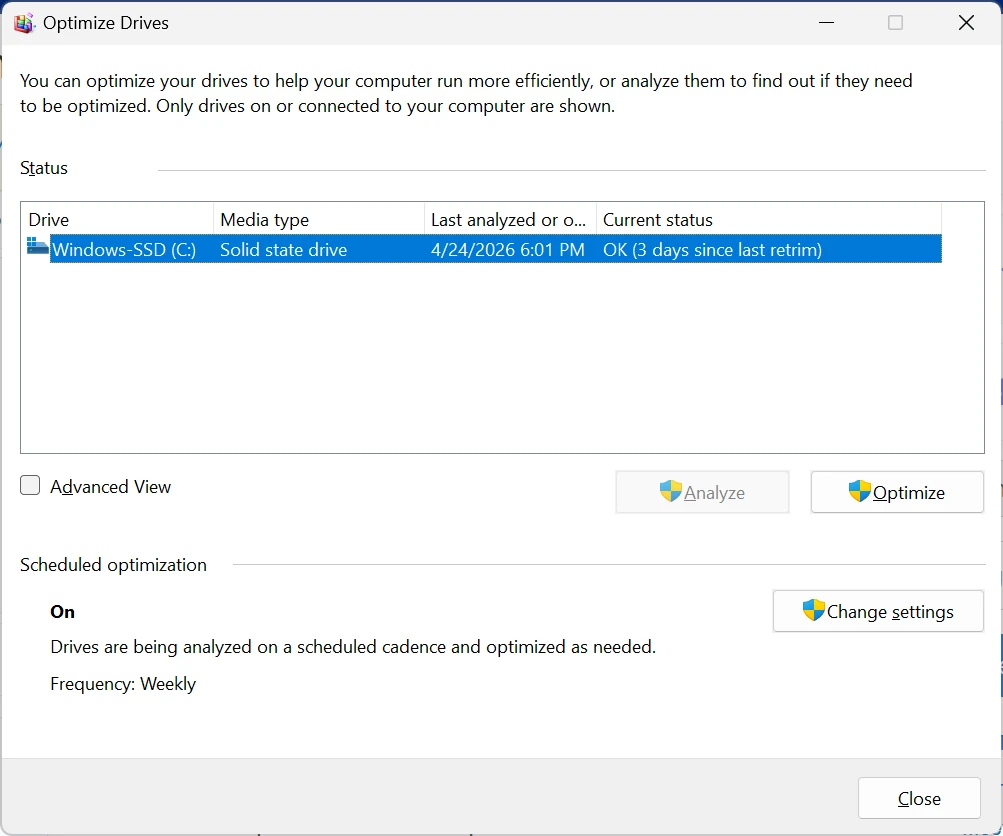
Windows will then reorganize the data on your drive. It may take some time, but once it’s done, your PC should feel a bit more responsive—apps may open faster and overall performance can improve.
A Few Helpful Tips
- Don’t defrag SSD drives—Windows already optimizes them automatically.
- It’s best to run defrag when you’re not actively using your PC.
- You can schedule it to run automatically so you don’t have to think about it.
- Freeing up disk space first can help the process run more efficiently.
Quick FAQs
How often should I defrag?
Every couple of months is usually enough for most users.
Will it speed up my PC?
Yes, especially if your hard drive is heavily fragmented, but it won’t fix issues like low RAM or malware.
Is it safe?
Yes—defragging is a normal maintenance task. Just avoid running it on SSDs.
Final Thoughts
Defragging isn’t something you need to do every day, but it’s a simple maintenance step that can keep an older hard drive running more smoothly. Think of it like basic upkeep—small effort, noticeable difference over time.
If you stay on top of updates, storage cleanup, and occasional optimization, your Windows 11 system will stay much more responsive in the long run.
Addition Information:
SSDs don’t need defragmentation because they work in a completely different way than traditional hard drives.
🧠 The key difference: how data is accessed
A traditional hard drive (HDD) uses a spinning disk and a moving read/write head. If a file is split into many pieces (fragmented), the head has to physically move around the disk to collect it all. That movement takes time, so fragmentation slows things down.
An SSD (Solid State Drive) has no moving parts. Instead, it stores data on flash memory chips and can access any data location instantly—like jumping to a page in a book rather than flipping through every page.
⚡ Why defragging doesn’t help SSDs
Defragmentation is meant to reduce physical movement. But SSDs:
- Don’t have mechanical parts
- Don’t suffer from seek time delays
- Access all memory locations at nearly the same speed
So whether a file is “scattered” or not, performance is basically unchanged.
⚠️ Why defragging an SSD can actually be harmful
SSDs have a limited number of write cycles. Defragmentation:
- Moves large amounts of data unnecessarily
- Creates extra write wear on memory cells
- Can shorten the drive’s lifespan over time
🔧 What SSDs use instead
Modern SSDs rely on:
- TRIM commands (cleans up unused data blocks)
- Built-in optimization tools in Windows
- Wear leveling (spreads writes evenly across the drive)
Windows 11 even labels SSD optimization as “Optimize,” but it does not perform traditional defragging on them.
🧾 Simple summary
HDDs need defragging because they rely on physical movement.
SSDs don’t, so defragging provides no speed benefit—and can actually reduce lifespan.



