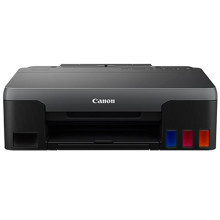
Easily install the drivers for the Canon Pixma G1020 Series Printer on Windows 11 and Windows 10. Newest drivers are listed first, if in doubt use the latest.
How to Install the Canon PIXMA G1020 Series Printer Driver (Windows 11 & Windows 10)
Step 1 – Download the Driver
Download the latest Canon PIXMA G1020 Series printer driver compatible with your version of Windows (11 or 10). Save the installer to your computer.
Step 2 – Run the Installer
Double-click the downloaded file and select Yes if prompted by User Account Control (UAC). Follow the on-screen instructions to begin the installation.
Step 3 – Connect the Printer
When prompted, connect the Canon PIXMA G1020 to your computer using a USB cable and power on the printer. Windows will detect the device automatically.
Step 4 – Complete the Installation
Finish the setup wizard, then print a test page from Settings → Bluetooth & devices → Printers & scanners to confirm the printer is installed and working correctly.
Canon G1020 series Printer Driver
File: pd__-win-g1020-1_03-ea34_2.exe
e4ccc387e948b41bbc1448c4108e805f613597f324bc26ac96e3a6c9537ee6c8
INK TYPE
GI-21 Pigment-Based Black Ink Bottle
GI-21 Dye-Based Color Ink Bottles (C,M,Y)



