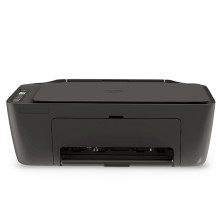
Drivers for the HP DeskJet 2900 Series Printer for both the scan & printer function. Windows 11/10 and 8.1.
The HP DeskJet 2900 Series is an all-in-one printer capable of printing, scanning, and copying. Installing the full HP software package ensures both the printer and scanner functions work correctly. HP dropped it from their page at some point but it is still in the repository.
Before You Begin
- Turn on the printer.
- Connect the printer to power.
- Do not connect the USB cable until prompted (if using USB).
- Ensure your Wi-Fi network is working if installing wirelessly.
Step 1 – Download the Driver
Download the latest HP DeskJet 2900 Series Full Feature Software below. The full package includes:
- Printer driver
- Scanner driver
- HP Smart software
- HP Scan software
- Device management utilities
HP recommends installing the full-feature software for complete printing and scanning functionality.
Step 2 – Run the Installer
- Locate the downloaded installer.
- Right-click the file.
- Select Run as administrator.
- Allow Windows to make changes if prompted by User Account Control (UAC).
The installer will extract the required files before launching the setup wizard.
Step 3 – Accept the License Agreement
- Read the HP License Agreement.
- Click Accept.
- Continue to the installation.
Step 4 – Choose Your Connection Method
USB Connection
- Leave the USB cable disconnected until instructed.
- When prompted, connect the USB cable between the printer and computer.
- Windows should automatically detect the printer.
- Continue until installation finishes.
Wireless (Wi-Fi)
- Choose Wireless Installation.
- The installer searches for nearby HP printers.
- Select your DeskJet 2900 printer.
- Enter your Wi-Fi password if requested.
- Wait while the printer joins your wireless network.
The installer may temporarily communicate over Bluetooth during setup to simplify wireless configuration.
Step 5 – Install HP Smart
If prompted, install HP Smart.
HP Smart allows you to:
- Print documents and photos
- Scan documents directly to your PC
- Scan to PDF
- Check ink levels
- Perform printer maintenance
- Update firmware
HP now recommends HP Smart for most modern DeskJet printers.
Step 6 – Complete Installation
Once installation is complete:
- Click Finish.
- Restart your computer if prompted.
Test Printing
- Open Settings → Bluetooth & devices → Printers & scanners.
- Select HP DeskJet 2900 Series.
- Choose Printer Properties.
- Click Print Test Page.
If the page prints successfully, the printer driver is correctly installed.
Test Scanning
Using HP Smart
- Open HP Smart.
- Select your printer.
- Click Scan.
- Place a document on the scanner glass.
- Click Scan.
- Save the scanned image or PDF.
Using Windows Scan
Windows 11, Windows 10, and Windows 8.1 also support scanning using the built-in Windows Scan application after the scanner driver is installed.
Updating the Driver
If Windows Update or HP releases a newer version:
- Download the latest package.
- Run the installer.
- Choose Update if offered.
- Restart the computer after installation.
Troubleshooting
Printer Not Detected
- Restart the printer.
- Restart your PC.
- Try a different USB port.
- Ensure both devices are on the same Wi-Fi network.
- Disable VPN software during installation.
Scanner Not Working
- Verify HP Smart is installed.
- Open Device Manager and check for imaging devices.
- Remove the printer from Windows and reinstall the full-feature driver package.
- Restart the Windows Image Acquisition (WIA) service if scanning fails.
Installation Fails
- Temporarily disable antivirus software.
- Disconnect other USB printers.
- Run the installer as Administrator.
- Install all pending Windows updates before trying again. Microsoft also recommends checking Windows Update for the latest compatible printer drivers.
Supported Operating Systems
- Windows 11 (64-bit)
- Windows 10 (32-bit & 64-bit)
- Windows 8.1 (32-bit & 64-bit)
Installing the full HP software package provides complete access to both printing and scanning features, ensuring the HP DeskJet 2900 Series operates with all supported functions.
HP DeskJet 2900/Ultra 5100 Series Driver (Easy Start)
File: HPEasyStart-16.8.12-DJ2900_63_1_42_3_Webpack.exe
1bc30e7e1c545d9ac964bddb5c1c696303163e18b92d9a54de3fc09bdb7d47c5



