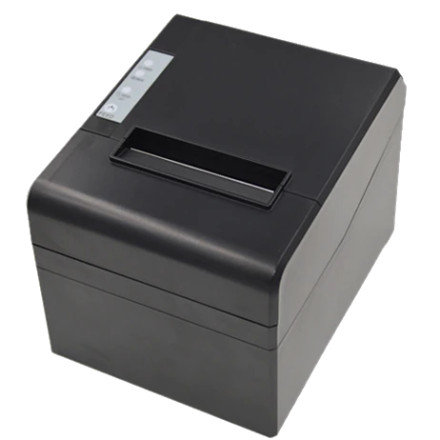
🧱 Device
#️⃣ Model No.
POS8330
Also Known As
SNROTEK SNR-POS8330
ZJiang POS-8330
Sunydog POS-8330
GSAN GS-8330
Graflsoa POS-8330
NETUM NT-8330
Bisofice POS-8330
Yuone POS-8330
ZJiang ZJ-8330
Interface/port(s)
ASIN
B0CR176WZ6
The POS8330 is an 80mm thermal receipt printer designed for point-of-sale (POS) printing. Install the printer using POS Printer Driver Setup V7.17. The POS Printer Test V3.30C utility can be used to check printer operation and test available printing functions.
Driver Details
- Device: POS8330 Thermal Receipt Printer
- Printer Type: 80mm Thermal
- Driver Installer:
POS Printer Driver Setup V7.17 - Test Utility:
POS Printer Test V3.30C - Operating Systems: Windows 11 / Windows 10
Installation
- Run
POS Printer Driver Setup V7.17.exeand allow it to extract or launch the installation files. - Follow the setup instructions and select the POS8330 model if prompted.
- Connect the printer to the computer using USB when instructed by the installer.
- Complete the installation and check that the printer appears under Settings > Bluetooth & devices > Printers & scanners.
- Confirm the paper width is set to 80mm, then print a test page or receipt.
Testing with POS Printer Test V3.30C
Use POS Printer Test V3.30C to check the printer and its available functions.
- Run
Printer Test V3.30C.exe. - Change the language to English if the utility opens in another language.
- Select the POS8330 printer or its installed USB printer port.
- Check the available test options and run a sample print.
- Use the additional test functions as needed to verify printer operation.
Troubleshooting
- Printer not detected: Check the USB cable and try another USB port. Confirm that Windows recognizes the connected device.
- Printer missing from the test utility: Make sure the driver is installed and select the correct printer or port.
- Blank receipts: Check that the thermal paper is loaded with its coated printing side facing the print head.
- Incorrect receipt width: Check the printer preferences and POS software settings for an 80mm paper size.
- Print jobs stuck: Clear the Windows print queue and restart the printer before testing again.
Compatibility: Install the Windows printer driver before using the test utility. POS Printer Test V3.30C is a separate utility for checking printing functions and does not replace the printer driver.