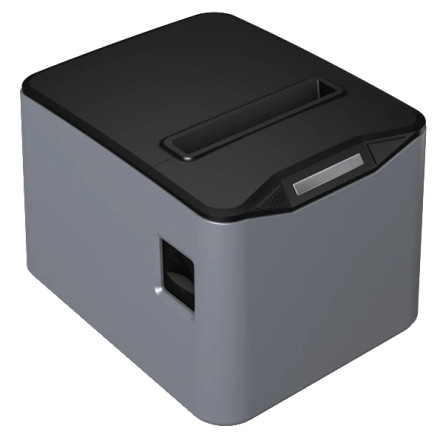
🧱 Device
#️⃣ Model No.
POS8370
Also Known As
SNROTEK SNR-POS8370
NUCOUN VCP-8370
Bisofice POS-8370
Yuone POS-8370
DotmaX D-8370
BUVVAS POS-8370
Interface/port(s)
ASIN
B0CSDKHKT7
The POS8370 is a generic 80mm thermal receipt printer designed for point-of-sale (POS) systems. It uses the POS 80mm/58mm Thermal Printer Driver version 11.3.0.3, which supports Windows 11, Windows 10, Windows 8, and Windows 7. The driver package is distributed as POS Printer Driver Setup03.exe, a self-extracting setup file that unpacks the installation files and launches the printer driver installation process.
Driver Details:
- Device: POS8370 80mm Thermal Receipt Printer
- Printer Type: Direct thermal receipt printer
- Driver Version: 11.3.0.3
- Package: POS 80mm/58mm Thermal Printer Driver
- Installer:
POS Printer Driver Setup03.exe - Operating Systems: Windows 11 / 10 / 8 / 7
Driver Installation
- Download
POS Printer Driver Setup03.exeand save it to your computer. - Right-click the file and select Run as administrator.
- The self-extracting setup will unpack the driver installation files.
- Follow the installation prompts to install the POS thermal printer driver.
- Connect the SNR-POS8370 to your computer using its USB connection when prompted, or after installation.
- Open Settings > Bluetooth & devices > Printers & scanners in Windows 11, or Settings > Devices > Printers & scanners in Windows 10.
- Confirm that the SNR-POS8370 appears in the installed printers list.
- Print a test page to verify that the printer is communicating correctly.
Troubleshooting
- Printer not detected: Check the USB cable and try another USB port. Avoid using an unpowered USB hub when troubleshooting connection problems.
- Printer appears as an unknown device: Reinstall the driver and make sure the installation is completed before reconnecting the printer.
- Paper feeds but nothing prints: Check that the thermal paper is loaded in the correct direction. Thermal paper only prints on its coated side.
- Incorrect paper size: Open Printer Properties or Printing Preferences and select the appropriate 80mm paper width and receipt settings.
- Print jobs remain in the queue: Clear the Windows print queue and restart the Print Spooler service before trying again.
- Test page prints incorrectly: Verify the selected printer model, paper width, and print density settings.