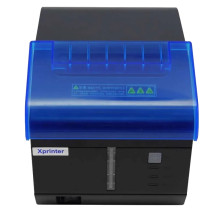
🧱 Device
🏗️ Manufacturer
Interface/port(s)
Operating System(s)
5 Quick Steps to Install the XPRINTER XP-C260M Thermal Printer Driver
- Download the Driver – Download the correct XPRINTER XP-C260M driver for your version of Windows and save it to your computer.
- Run the Installer – Extract the downloaded files if necessary, then right-click the setup program and select Run as administrator. Accept the license agreement and follow the installation wizard.
- Connect the Printer – Turn on the printer and connect it using a USB cable (or Ethernet if applicable). Windows should detect the device automatically.
- Select the Correct Port – When prompted, choose the correct printer port (such as USB001) or use the installer's Check USB Port feature to detect it automatically.
- Print a Test Page – Open Settings > Bluetooth & devices > Printers & scanners, select the XPRINTER XP-C260M, then print a test page to confirm the driver is installed correctly. If needed, adjust the paper size and print settings for your receipt paper.
Xprinter Driver 58/76/80/90mm
File: XPrinter Driver Setup V8.2.exe
SHA-256 Checksum:
a84e7cea4fdca8370a7a3d4c858970eb7ac368602b184de8fe06abfb4c653d78
Xprinter Driver 58/76/80/90mm
File: XPrinter Driver V8.0.exe
SHA-256 Checksum:
0bfc7050e69aa27231086d7e2618f74dee1402a4501812ecc4de93310dc8826e
Xprinter Driver 58/76/80/90mm
File: XPrinter Driver Setup V7.77.exe
Xprinter Driver 58/76/80/90mm
File: Mac Driver.zip
SHA-256 Checksum:
3826b0e770672cba4fc68147e24440117d98c0b673e2d9632dc668cf5dc64c06
Xprinter Driver 58/76/80/90mm
File: Mac Driver.zip
Xprinter Print Service
File: Xprinter print service_1.4_new.apk
SHA-256 Checksum:
4c9392e06a97abf9f2aa765ebe08d7e65f72c0568bf84ac243dc7ffff06ea554
Xprinter Driver
File: Xprinter_2022.2.exe
SHA-256 Checksum:
284cc380c5d521bf94bc2ab60859edff07ededfe873ca7109aa8d169caf2efca



