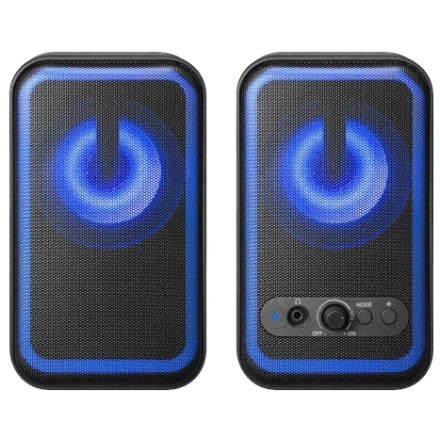
Compatibility
- Devices with a 3.5 mm audio-out port, including computers, laptops, and tablets
- Wired headphones with a 3.5 mm audio plug for private listening
- Bluetooth-enabled devices, including phones, laptops, and tablets
Setting Up Your Computer Speakers
- Connect your computer speakers to a power source. See “Powering Your Speaker System with a Computer” or “Powering Your Speaker System with an AC Outlet.”
- Connect your desired device. See “Connecting Wired (AUX) Devices” or “Connecting Bluetooth Devices.”
- Start playback on your connected device.
- Rotate the ON/OFF and VOL +/- control knob to adjust the volume.
- Adjust the LED lighting as desired. See “Using the LED Lights.”
Positioning Your Speaker System
Place the speakers on opposite sides of the device they are connected to, positioning them as far apart as practical. Make sure the speaker labels match their intended positions: “L” for the left speaker and “R” for the right speaker.
Powering Your Speaker System with a Computer
- Make sure your computer and speaker system are turned off and unplugged.
- Insert the audio plug from the right speaker into your computer’s audio-out port.
- Connect the USB-C cable from the right speaker to a USB-C port on your computer.
Notes:
- If your computer does not have an available USB-C port, connect the USB-C-to-USB-A adapter to the speaker’s USB-C cable, then plug the USB-A end into an available USB-A port on your computer.
- Your computer speakers require a minimum power input of 10W. For best performance, use a 12W adapter.
- Plug in and turn on your computer. Rotate the ON/OFF and VOL +/- control knob clockwise to turn on the speaker system. The status LED indicates the selected mode.
Powering Your Speaker System with an AC Outlet
- Make sure your audio device and speaker system are turned off and unplugged.
- Connect the USB-C-to-USB-A adapter to the USB-C cable from the right speaker, then connect the USB-A end to an AC power adapter (not included).
Note: If your AC adapter has an available USB-C port, connect the speaker’s USB-C cable directly to the adapter.
- Plug the AC power adapter into a wall outlet or power strip.
- Connect your audio device using a wired or Bluetooth connection. See “Connecting Wired (AUX) Devices” or “Connecting Bluetooth Devices.”
- Turn on your device, then rotate the ON/OFF and VOL +/- control knob clockwise to turn on the speaker system. The status LED indicates the selected mode.
Status LED
| LED Status | Description |
|---|---|
| Blinking blue | Speakers are in Bluetooth pairing mode |
| Solid blue | Speakers are connected to Bluetooth |
| Solid green | AUX mode |
Connecting Wired (AUX) Devices
- Insert the audio plug from the right speaker into the audio-out port on your computer or portable audio device.
Note: If your device does not have a 3.5 mm audio-out port, you may need an additional adapter (not included).
- Rotate the ON/OFF and VOL +/- control knob clockwise to turn on the speaker system. The status LED glows green to indicate AUX mode.
Note: If the status LED is blinking or solid blue, the speakers are in Bluetooth mode. Press the MODE button to switch to AUX mode.
Connecting Bluetooth Devices
- Make sure your Bluetooth device is turned on and within 32.8 ft. (10 m) of the speaker system.
- Rotate the ON/OFF and VOL +/- control knob clockwise to turn on the speaker system. The status LED blinks blue to indicate pairing mode.
Note: If the status LED is solid green, the speakers are in AUX mode. Press the MODE button to switch to Bluetooth mode.
- On your Bluetooth device, turn on Bluetooth.
- Select Insignia NS-CSB2B6 from the available Bluetooth devices.
- Wait for the status LED to change from blinking blue to solid blue. This indicates that the speakers have successfully paired.
Note: If you have trouble pairing, refer to the instructions provided with your Bluetooth device.
Reconnecting a Bluetooth Device
Make sure the last paired Bluetooth device is turned on, has Bluetooth enabled, and is near the speaker system. When the speakers are in Bluetooth mode, they automatically search for and attempt to reconnect to the last paired device.



