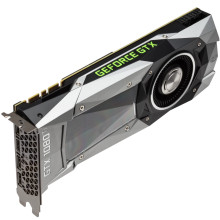
Keeping your graphics drivers up to date is important for gaming performance, video editing, bug fixes, security updates, and compatibility with the latest Windows 11 updates. This guide covers the safest methods for updating NVIDIA, AMD, and Intel graphics drivers.
Step 1: Identify Your Graphics Card
Before downloading drivers, determine which GPU is installed in your computer.
Method 1: Device Manager
- Right-click the Start button.
- Select Device Manager.
- Expand Display adapters.
- Note the graphics adapter listed.
Examples:
- NVIDIA GeForce RTX 4070
- AMD Radeon RX 7800 XT
- Intel Arc A770
- Intel UHD Graphics 770
Method 2: Task Manager
- Press Ctrl + Shift + Esc.
- Click the Performance tab.
- Select GPU.
- The GPU model will be displayed.
Step 2: Download the Latest Driver
Always download drivers directly from the GPU manufacturer whenever possible.
NVIDIA Drivers
- Visit NVIDIA's driver download page.
- Select your GPU model.
- Download the latest Game Ready or Studio Driver.
Game Ready Drivers
- Best for gaming.
- Optimized for new game releases.
Studio Drivers
- Recommended for video editing, CAD, and creative applications.
AMD Drivers
- Visit AMD's driver support page.
- Locate your Radeon graphics card.
- Download the latest Adrenalin Edition package.
Intel Drivers
- Visit Intel's driver support page.
- Download the latest graphics driver for your Intel GPU.
- Intel Driver & Support Assistant can also automatically detect compatible drivers.
Step 3: Create a Restore Point (Recommended)
Before installing a new driver:
- Open Start.
- Search for Create a Restore Point.
- Click Create.
- Enter a name such as:
- Before GPU Update
- Click Create.
This allows you to revert changes if problems occur.
Step 4: Install the Driver
NVIDIA Installation
- Run the downloaded installer.
- Accept the license agreement.
- Select Express Installation for most users.
For a completely fresh installation:
- Choose Custom Installation.
- Check Perform a Clean Installation.
- Continue with setup.
AMD Installation
- Launch the Adrenalin installer.
- Allow hardware detection.
- Select installation options.
- Complete setup.
Intel Installation
- Run the installer.
- Follow the prompts.
- Restart the computer when finished.
Step 5: Restart Windows 11
Even if not prompted, reboot the system after updating.
A restart ensures:
- Driver files load correctly.
- Old driver components are unloaded.
- New optimizations become active.
Step 6: Verify the Installation
Device Manager
- Open Device Manager.
- Expand Display Adapters.
- Double-click your GPU.
- Select the Driver tab.
Confirm:
- Driver Version
- Driver Date
DirectX Diagnostic Tool
- Press Windows + R.
- Type:
dxdiag
- Press Enter.
- Open the Display tab.
Verify the installed driver information.
Troubleshooting Driver Problems
Black Screen After Updating
- Boot into Safe Mode.
- Open Device Manager.
- Roll back the driver.
- Install an earlier version.
Game Crashes
- Update Windows 11 fully.
- Verify game files.
- Try a clean driver installation.
Performance Is Worse
Sometimes a newer driver introduces issues.
Try:
- Rolling back to a previous version.
- Installing a WHQL-certified driver.
- Waiting for the next driver release.
Using Windows Update
Windows 11 can install graphics drivers automatically:
- Open Settings.
- Select Windows Update.
- Click Check for Updates.
- Open Advanced Options.
- Select Optional Updates.
While convenient, these drivers are often older than those available directly from NVIDIA, AMD, or Intel.
Should You Update GPU Drivers?
You should update if:
- Games are crashing.
- Performance is poor.
- A new game requires updated drivers.
- Security fixes have been released.
- You recently upgraded Windows 11.
You may not need to update immediately if:
- Your system is stable.
- Everything is working correctly.
- No new features are needed.
Final Thoughts
Updating your GPU driver in Windows 11 is one of the easiest ways to improve system stability, gaming performance, and compatibility with modern software. For the best results, download drivers directly from NVIDIA, AMD, or Intel, create a restore point before installation, and perform a clean installation when troubleshooting graphics-related issues.



