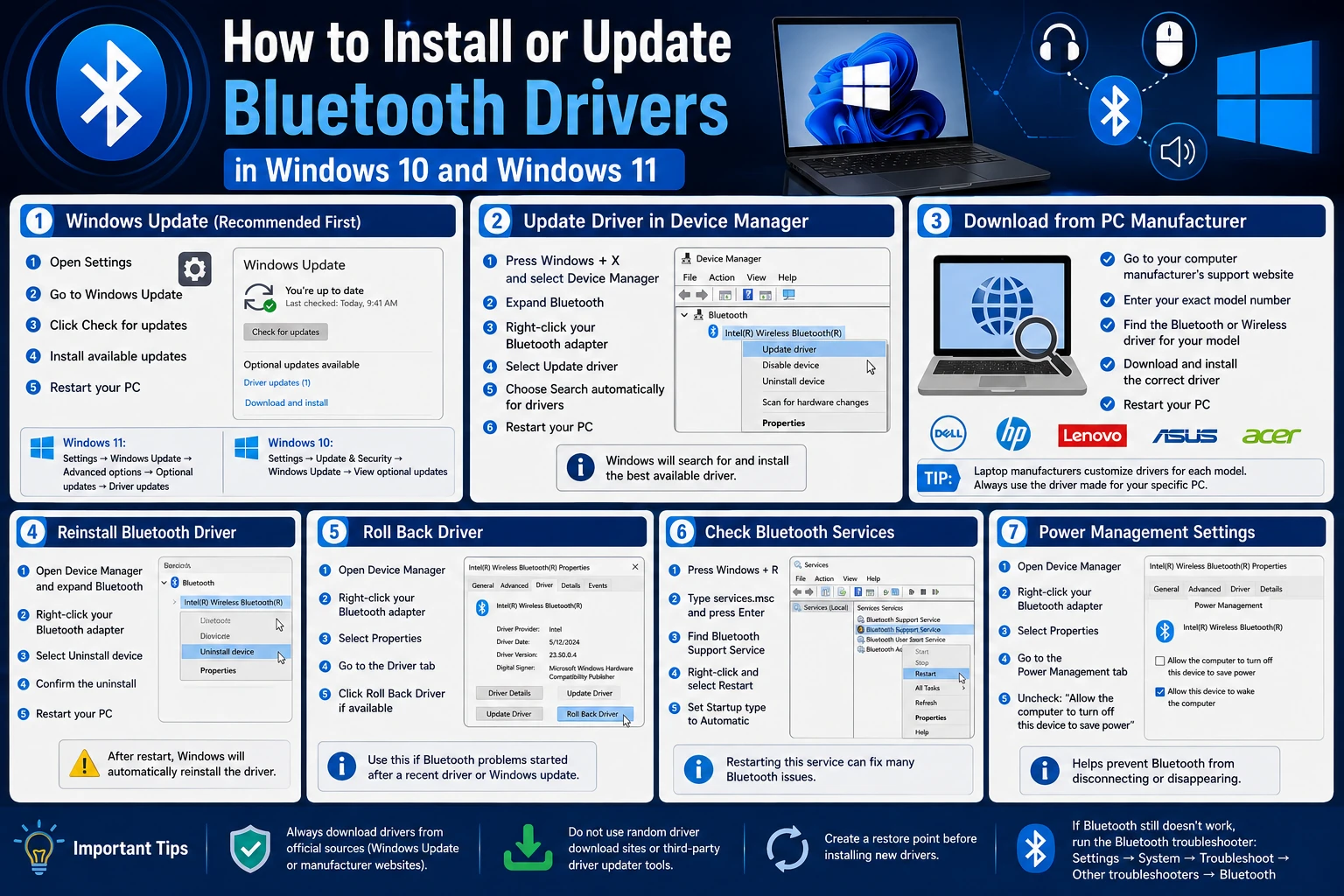
Bluetooth problems in Windows can be caused by a missing driver, an outdated or incompatible driver, Windows Update issues, disabled Bluetooth services, power-management settings, or even a hardware problem. If Bluetooth has disappeared, devices will not pair, or your Bluetooth headphones keep disconnecting, reinstalling or updating the correct Bluetooth driver may solve the problem.
The good news is that you usually do not need a third-party driver updater to install a Bluetooth driver.
Windows 10 and Windows 11 include several ways to update, reinstall, and troubleshoot Bluetooth drivers. If Windows cannot find the required driver, you can download the correct package directly from your computer or Bluetooth adapter manufacturer.
Important: A Bluetooth device driver is different from the Bluetooth device you are connecting to your computer. For example, your wireless mouse does not normally require you to install a separate Windows Bluetooth driver. The important driver is the one for the Bluetooth adapter inside your PC or USB Bluetooth adapter.
What Is a Bluetooth Driver?
A Bluetooth driver is software that allows Windows to communicate with the Bluetooth hardware installed in your computer.
The Bluetooth adapter may be integrated into a laptop's wireless card, built into a desktop motherboard, or connected as an external USB adapter.
Common Bluetooth hardware manufacturers include:
- Intel
- Realtek
- MediaTek
- Qualcomm
- Broadcom
- ASUS
- TP-Link
- Lenovo
- Dell
- HP
- Acer
The correct driver depends on the actual Bluetooth hardware and, in many cases, the specific computer model.
Installing a driver intended for a different Bluetooth chipset can cause the adapter to malfunction or disappear from Windows.
Before Installing a Bluetooth Driver
Before downloading anything, determine whether Windows can actually see your Bluetooth adapter.
Press Windows + X and select Device Manager.
Look for a section called:
Bluetooth
Expand it and look for the Bluetooth adapter.
The adapter may have a name such as:
- Intel Wireless Bluetooth
- Realtek Bluetooth Adapter
- MediaTek Bluetooth
- Qualcomm Bluetooth
- Generic Bluetooth Adapter
- Bluetooth Radio
If Bluetooth is missing from Device Manager, also check Other devices for an unknown device with a yellow warning icon.
This can help determine whether Windows has detected the hardware but does not have the appropriate driver installed.
Method 1: Install Bluetooth Drivers Through Windows Update
Windows Update should be the first method you try.
Microsoft distributes many hardware drivers through Windows Update, including Bluetooth drivers. Microsoft specifically recommends checking Windows Update when Bluetooth is not working correctly. (Microsoft Support)
Windows 11
- Open Start.
- Select Settings.
- Select Windows Update.
- Click Check for updates.
- Install available updates.
- Restart the computer.
You should also check optional driver updates.
Go to:
Settings → Windows Update → Advanced options → Optional updates
If a Bluetooth driver appears under Driver updates, select it and install it.
Windows 10
Open:
Start → Settings → Update & Security → Windows Update
Select:
Check for updates
Install available updates and restart the computer.
If Windows Update provides a Bluetooth driver, this is generally the easiest way to install it.
Method 2: Update the Bluetooth Driver in Device Manager
Device Manager can search Windows for a newer driver.
Step 1: Open Device Manager
Press:
Windows + X
Then select:
Device Manager
You can also type Device Manager into Windows Search.
Step 2: Expand Bluetooth
Find:
Bluetooth
and expand the section.
Step 3: Select the Bluetooth Adapter
Right-click your Bluetooth adapter.
Select:
Update driver
Step 4: Search Automatically
Select:
Search automatically for drivers
Windows will search for an appropriate driver.
Microsoft documents this as one of the standard methods for updating Bluetooth drivers in both Windows 10 and Windows 11. (Microsoft Support)
Step 5: Restart Windows
After the driver installation finishes, restart the computer.
Then test Bluetooth again.
What If Windows Says the Best Driver Is Already Installed?
This message does not necessarily mean that your Bluetooth driver is the newest version available.
It means Windows has determined that the driver it found is the best match available through that particular search.
Microsoft recommends checking the computer manufacturer's website if Windows reports that the best driver is already installed but Bluetooth problems continue. (Microsoft Support)
This is particularly important with laptops and prebuilt desktop computers because manufacturers may customize Bluetooth, Wi-Fi, chipset, and power-management drivers for a particular model.
Method 3: Download the Bluetooth Driver From the Computer Manufacturer
If Windows Update and Device Manager cannot resolve the problem, download the driver directly from the computer manufacturer's website.
This is often the best option for laptops.
For example, if you have a:
- Dell laptop — use Dell Support
- HP laptop — use HP Support
- Lenovo laptop — use Lenovo Support
- ASUS laptop — use ASUS Support
- Acer laptop — use Acer Support
Search for your exact model number, not simply "Bluetooth driver."
A laptop may contain several hardware configurations under the same product family, so installing a random Bluetooth driver found through a search engine can result in the wrong package.
Microsoft specifically recommends going to the PC manufacturer's support website and searching by the device model when the normal Windows driver update process does not resolve the issue. (Microsoft Support)
Method 4: Download the Driver From the Bluetooth Adapter Manufacturer
For some computers, particularly custom-built desktops, you may need to identify the actual Bluetooth chipset.
For example, the adapter may use hardware from:
Intel, Realtek, MediaTek, Qualcomm, or Broadcom.
If you know the exact adapter, you can obtain the driver from the hardware manufacturer's official website.
However, laptop owners should generally check their computer manufacturer's support page first.
A manufacturer may provide a customized driver that is better suited to the specific laptop than a generic driver.
How to Find Your Bluetooth Hardware ID
If you cannot determine which Bluetooth driver you need, Windows provides a useful way to identify the hardware.
Open:
Device Manager
Find the Bluetooth device or unknown device.
Right-click it and select:
Properties → Details
From the Property drop-down menu, select:
Hardware Ids
You may see something similar to:
USB\VID_8087&PID_0026or:
PCI\VEN_8086&DEV_XXXXThe hardware ID identifies the actual hardware rather than simply describing it as "Bluetooth."
This information can be extremely useful when searching for the correct driver.
How to Reinstall a Bluetooth Driver
If Bluetooth stopped working after an update or the driver appears corrupted, reinstalling the driver may help.
Step 1
Open:
Device Manager
Step 2
Expand:
Bluetooth
Step 3
Right-click the Bluetooth adapter.
Select:
Uninstall device
Step 4
Confirm the uninstall.
Depending on the version of Windows and the device, you may see an option asking whether to remove the driver package.
Do not remove additional drivers unless you understand exactly what you are removing.
Step 5
Restart the computer.
Microsoft states that Windows will attempt to reinstall the Bluetooth driver after the adapter is uninstalled and the computer is restarted. (Microsoft Support)
If Windows does not automatically reinstall it, open Device Manager and select:
Action → Scan for hardware changes
Bluetooth Driver Disappeared From Device Manager
If Bluetooth completely disappeared, don't immediately assume the driver is the problem.
First check whether:
- Airplane mode is disabled
- Bluetooth is enabled
- Windows Update is current
- The computer has been restarted
- The Bluetooth adapter appears under another category
- The adapter appears under Other devices
- The physical wireless switch, if present, is enabled
Microsoft also recommends checking Windows Update and Device Manager when Bluetooth disappears. (Microsoft Support)
If the adapter does not appear anywhere in Device Manager, there may be a hardware, BIOS/UEFI, USB, or wireless-card issue rather than simply a missing driver.
Bluetooth Works but Keeps Disconnecting
Not every Bluetooth problem is caused by an outdated driver.
If Bluetooth repeatedly disconnects, check the power-management settings.
Open:
Device Manager → Bluetooth → Bluetooth Adapter → Properties
If a Power Management tab is available, look for:
Allow the computer to turn off this device to save power
On affected systems, clearing this option may prevent Windows from powering down the Bluetooth adapter.
Microsoft lists power-saving settings as one possible cause of repeated Bluetooth disconnections. (Microsoft Support)
Restart the Bluetooth Support Service
Windows also has a Bluetooth service that handles Bluetooth functionality.
Press:
Windows + R
Type:
services.mscPress Enter.
Find:
Bluetooth Support Service
Right-click it and select:
Restart
If Bluetooth is repeatedly failing, restarting this service can be another useful troubleshooting step. (Microsoft Support)
Roll Back a Bluetooth Driver
If Bluetooth worked correctly before a recent driver or Windows update, installing another driver may not be the best solution.
Instead, try rolling back the driver.
Open:
Device Manager → Bluetooth → Bluetooth Adapter → Properties → Driver
If the Roll Back Driver button is available, select it and follow the instructions.
Microsoft recommends driver rollback when Bluetooth problems begin after a recent driver or Windows update. (Microsoft Support)
How to Install a Bluetooth Driver Manually
Sometimes the manufacturer provides individual driver files rather than a traditional installer.
A driver package may contain files such as:
.inf
.sys
.cat
If the manufacturer provides an executable installer, simply run the manufacturer's installer.
If you receive individual driver files, Device Manager can be used.
Go to:
Device Manager → Bluetooth → Bluetooth Adapter → Update driver
Select:
Browse my computer for drivers
Then select the folder containing the driver files.
Microsoft documents this manual installation method for Bluetooth drivers supplied by PC manufacturers. (Microsoft Support)
Should You Use a Third-Party Driver Updater?
For Bluetooth drivers, there is usually little reason to install a third-party driver updater.
Windows already provides driver installation through Windows Update and Device Manager. Microsoft also recommends obtaining drivers from the PC manufacturer when Windows cannot find an appropriate driver. (Microsoft Support)
Third-party driver programs can also make troubleshooting more difficult because they may change multiple drivers at once.
If Bluetooth is the only device that isn't working, replacing dozens of unrelated drivers isn't necessary.
Find the Bluetooth adapter, identify the hardware, and install the appropriate driver.
Don't Assume the Newest Driver Is Always the Best Driver
A newer driver is not automatically better for every computer.
The correct driver needs to be compatible with:
- The Bluetooth chipset
- Your Windows version
- Your computer model
- The wireless hardware
- The manufacturer's configuration
If Bluetooth is working correctly, there may be no reason to replace the driver simply because a newer version exists.
The purpose of a driver update should be to resolve a problem, add required compatibility, or obtain a manufacturer-provided improvement—not simply to make the driver version number newer.
Windows 10 Bluetooth Drivers in 2026
There is an important consideration for Windows 10 users in 2026.
Microsoft ended regular support for Windows 10 on October 14, 2025. Therefore, Windows 10 users should not assume that installing a newer Bluetooth driver will provide the same level of operating-system support available on Windows 11.
If your PC supports Windows 11, upgrading the operating system may be a more important long-term consideration than searching for a generic Windows 10 Bluetooth driver.
For older hardware that must remain on Windows 10, the computer manufacturer's driver archive can be particularly valuable.
Common Bluetooth Driver Problems and Solutions
| Problem | What to Try |
|---|---|
| Bluetooth missing from Settings | Check Device Manager and Windows Update |
| Bluetooth missing from Device Manager | Check hardware, BIOS/UEFI, Windows Update and manufacturer drivers |
| Bluetooth device has a yellow warning icon | Update or reinstall the adapter driver |
| Bluetooth stopped after an update | Roll back the driver |
| Bluetooth keeps disconnecting | Check power-management settings |
| Bluetooth won't pair | Restart Bluetooth, restart Windows and run Bluetooth troubleshooting |
| Windows cannot find a driver | Download the driver from the PC manufacturer |
| Generic Bluetooth driver installed | Identify the adapter and install the correct manufacturer driver |
| Driver installation fails | Verify the exact computer/adapter model and Windows version |
| USB Bluetooth adapter isn't detected | Try another USB port and install the manufacturer's driver |
Frequently Asked Questions
How do I install a Bluetooth driver in Windows 10?
Open Device Manager, expand Bluetooth, right-click the Bluetooth adapter, select Update driver, and choose Search automatically for drivers. You can also install Bluetooth drivers through Windows Update or download the correct driver from your PC manufacturer's website. (Microsoft Support)
How do I install a Bluetooth driver in Windows 11?
Go to Settings → Windows Update → Check for updates and install available updates. You can also use Device Manager → Bluetooth → Update driver. Microsoft recommends checking the computer manufacturer's website if Windows cannot find the appropriate driver. (Microsoft Support)
Why is Bluetooth missing from Device Manager?
Possible causes include a missing driver, disabled hardware, a Windows problem, a BIOS/UEFI setting, or a hardware failure. Check Other devices, install available Windows updates, restart the computer, and check the manufacturer's support page.
Can I reinstall a Bluetooth driver?
Yes. In Device Manager, right-click the Bluetooth adapter, select Uninstall device, and restart Windows. Microsoft states that Windows will attempt to reinstall the Bluetooth driver after the restart. (Microsoft Support)
Where can I download Bluetooth drivers?
The safest sources are Windows Update, your computer manufacturer's official support website, or the official website of the Bluetooth adapter manufacturer.
Do I need a Bluetooth driver updater?
Usually, no. Windows already includes tools for updating and reinstalling Bluetooth drivers. If those tools cannot resolve the problem, identify the exact Bluetooth hardware and obtain the appropriate driver from the manufacturer.
Final Thoughts
Installing a Bluetooth driver in Windows 10 or Windows 11 doesn't require complicated software.
Start with Windows Update. If that doesn't solve the problem, use Device Manager to identify, update, reinstall, or roll back the Bluetooth adapter. If Windows still cannot provide the correct driver, find your exact computer model and download the Bluetooth driver directly from the manufacturer's support website.
If Bluetooth disappeared completely, don't assume that downloading a random "Bluetooth driver" will fix it. The adapter may be disabled, disconnected, malfunctioning, or missing from Windows for another reason.
Most importantly, avoid downloading generic driver packages from unfamiliar websites simply because they claim to have the latest Bluetooth driver. The correct driver is the one designed for your specific hardware and Windows installation.
For most users, the safest approach is simple:
Windows Update → Device Manager → PC Manufacturer → Hardware Manufacturer
Work through those sources in that order, and you can usually resolve Bluetooth driver problems without installing unnecessary third-party driver software.




