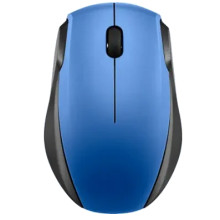
If your mouse is not working correctly in Windows 11 or Windows 10, the issue is usually related to power, connection type, or drivers. This guide walks through how to diagnose mouse problems step by step, install or reinstall mouse drivers, and resolve the most common issues.
Step 1: Identify Your Mouse Type
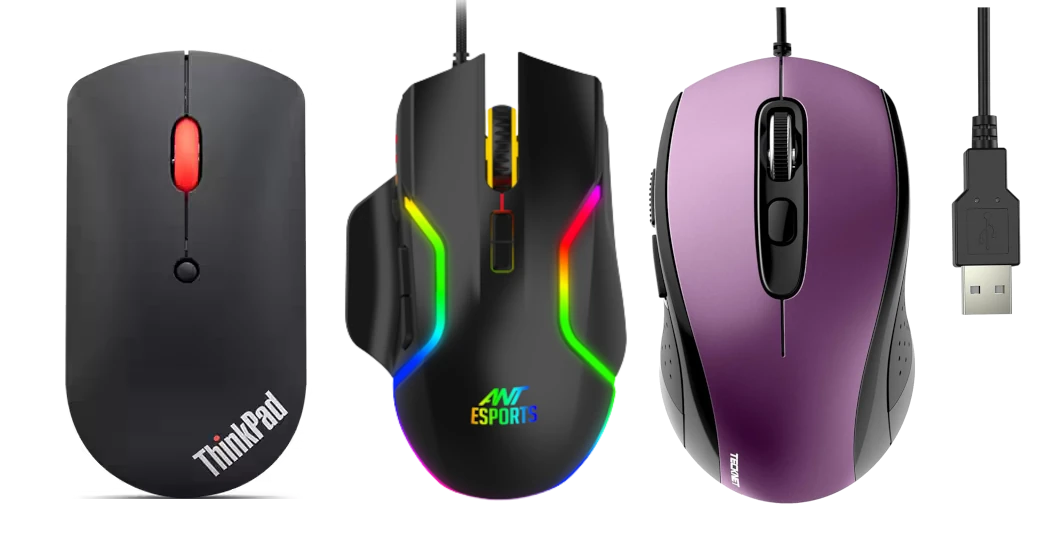
Before troubleshooting, determine which type of mouse you are using:
- Wired USB mouse
- Wireless USB mouse (dongle-based)
- Bluetooth mouse
- Gaming mouse with software (Mouse driver collection here)
Each type has slightly different troubleshooting steps.(Note: Some mouse models have both Bluetooth and 2.4GHz Dongle compatibility)
Step 2: Basic Mouse Checks (Always Do This First)
Many mouse issues are hardware-related and not driver-related.
Wired Mouse
- Unplug and reconnect the mouse
- Try a different USB port
- Avoid USB hubs during testing
Wireless Mouse
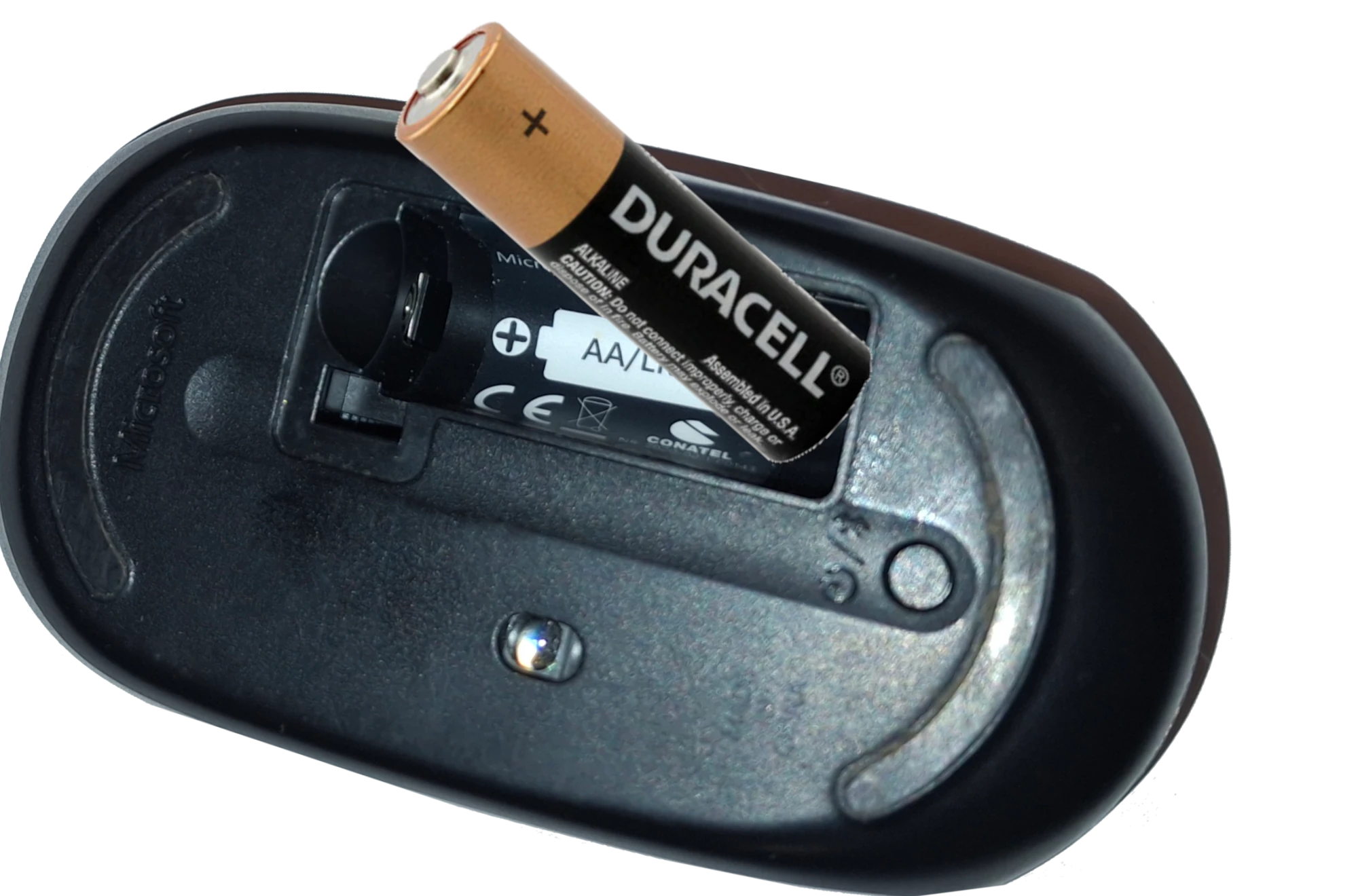
- Replace or recharge batteries
- Reinsert the wireless USB dongle
- Keep the mouse within range
Bluetooth Mouse
- Ensure Bluetooth is enabled
- Re-pair the mouse
- Remove old Bluetooth devices
Step 3: Check Mouse Status in Device Manager
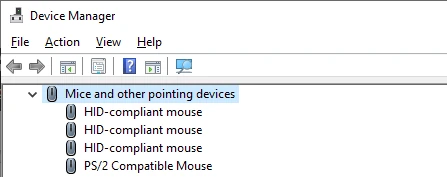
- Right-click Start → Device Manager
- Expand Mice and other pointing devices
- Look for warning icons or unknown devices
Common entries include:
- HID-compliant mouse
- Manufacturer-specific mouse
Step 4: Reinstall Mouse Drivers
Windows uses built-in HID drivers for most mice. Reinstalling them often resolves problems.
Steps:
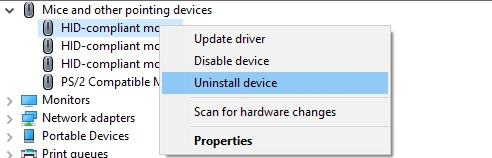
- In Device Manager, right-click your mouse
- Select Uninstall device
- Restart Windows
- Windows will automatically reinstall the driver
Step 5: Install Manufacturer Mouse Drivers (If Applicable)
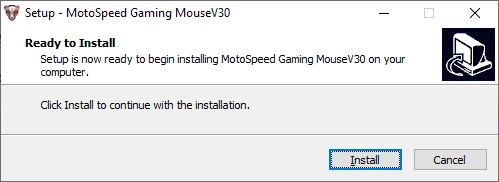
Gaming mice and advanced mice often require additional software for:
- DPI control
- Button mapping
- RGB lighting
- Macro support
Important notes:
- Many mice share identical hardware across brands
- Drivers may work across rebranded models unless hard-coded to a specific HWID
- Always download drivers compatible with Windows 10/11
Step 6: Mouse Moves but Clicks Don’t Work
Possible causes:
- Corrupted driver
- Software conflict
- Hardware button failure
Fixes:
- Test the mouse on another computer
- Disable third-party mouse software temporarily
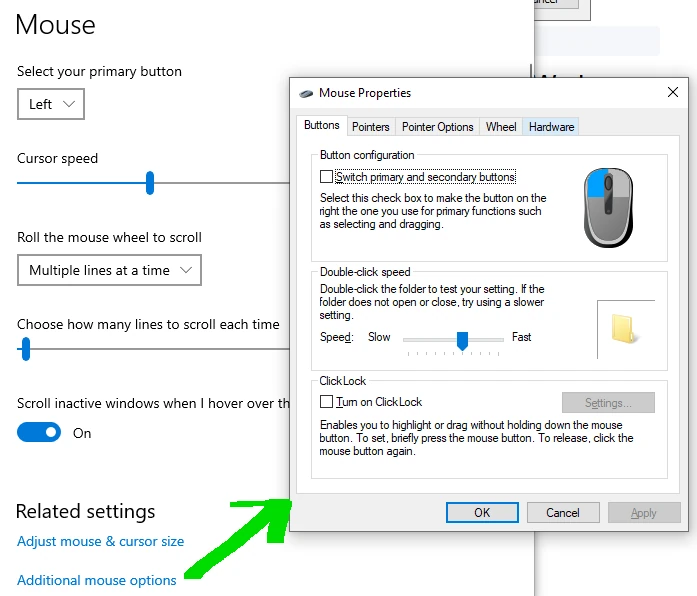
- Check Windows mouse settings
Step 7: Mouse Lag, Freezing, or Random Disconnects
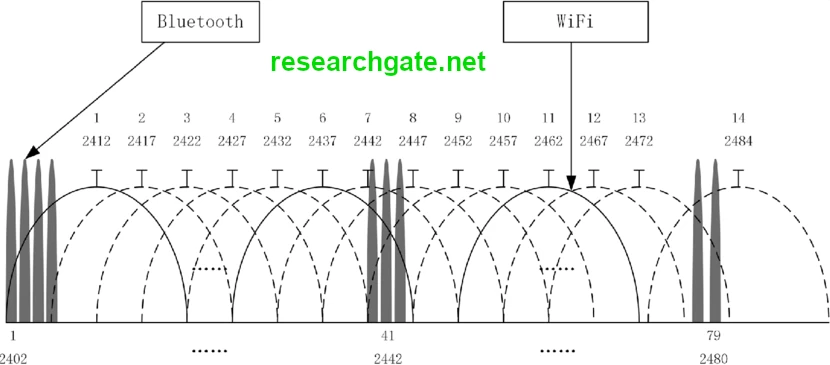
Common with wireless mice.
Solutions:
- Move dongle closer using a USB extension
- Avoid USB 3.0 interference
- Replace batteries
- Update USB and chipset drivers
Step 8: Mouse Not Detected at All
If the mouse does not appear in Device Manager:
- Try a different USB port
- Test on another PC
- Check BIOS/UEFI USB settings
- Boot into Safe Mode to rule out software conflicts

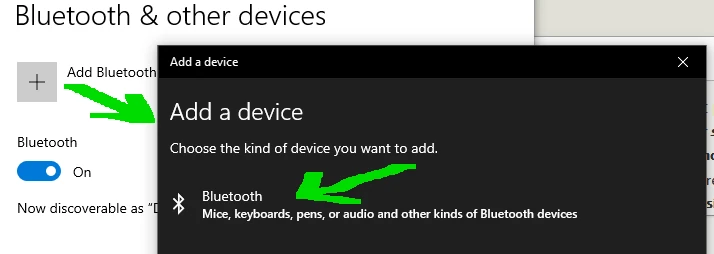
Step 9: Bluetooth Mouse Pairing Issues
Steps to fix:
- Remove the mouse from Bluetooth devices
- Restart Bluetooth service
- Re-pair the mouse
- Update Bluetooth drivers or Re-install them.
Step 10: Reset Windows Mouse Settings
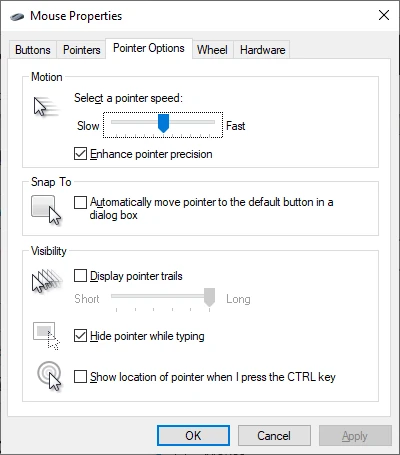
Corrupted settings can affect mouse behavior.
Steps:
- Open Settings → Bluetooth & devices → Mouse
- Restore default speed and scrolling
- Disable enhanced pointer precision (for testing)
Frequently Asked Questions (Mouse-Specific)
Why does Windows say my mouse is HID-compliant?
Windows uses a universal HID driver for most mice. This is normal and expected.
Do I need a driver for my mouse?
Basic mice do not require extra drivers. Gaming mice often do use the mouse database to look up your model.
Why does my mouse work in BIOS but not Windows?
This almost always indicates a driver or software conflict.
Can one mouse driver work for multiple brands?
Yes. Many mice share identical internals and firmware.
Should I use driver updater tools?
No, in fact never. They often install incorrect or unnecessary drivers or even malware.
Final Diagnosis Checklist
✔ Mouse type identified
✔ Power and batteries checked
✔ Device Manager verified
✔ Drivers reinstalled
✔ Software conflicts ruled out



