
Are you running the latest version of Windows? Has your PC already received the major Windows 11 24H2 update, or are you still missing out on the newest features? Checking your Windows version will quickly answer those questions.
Below are three simple ways to find your Windows version and build number.
1. Use the Winver Tool (Quickest Method)
The built-in Winver tool displays your Windows version in seconds.
- Type winver into the taskbar search box
- Click the Run command result
- A window will open showing your version and build number
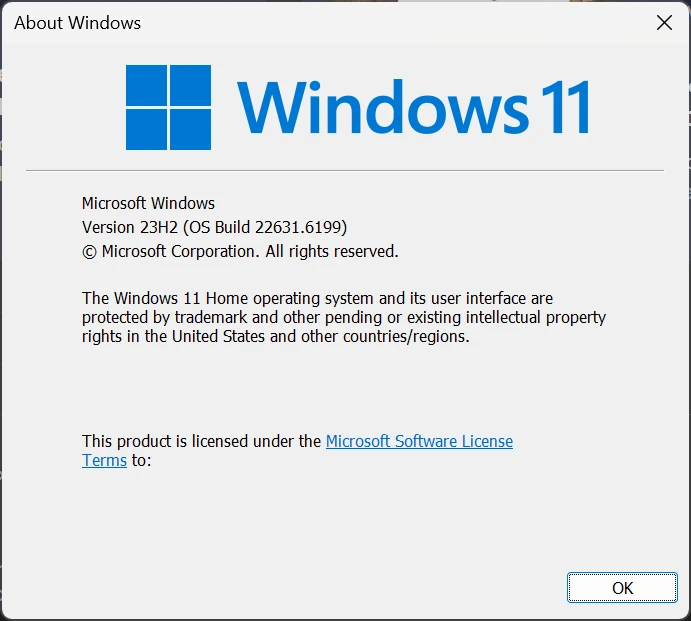
👉 This is the fastest and easiest way to check.
2. Check in Windows Settings
You can also find this information in the Settings menu.
- Open Settings from the Start menu
- Go to System → About
- Scroll down to Windows specifications
Here, you’ll see details like version, edition, and OS build.
3. Look in the Registry Editor (Advanced)
For a deeper look, the version is also stored in the registry.
- Type regedit in the taskbar search (also see: 3 Ways to Open Registry Editor on Windows 11)
- Open Registry Editor
Navigate to:
HKEY_LOCAL_MACHINE\SOFTWARE\Microsoft\Windows NT\CurrentVersion- Check the right-hand panel:
- DisplayVersion (main version number)
- ReleaseId (older versions)
👉 Most modern systems use DisplayVersion as the primary reference.
These methods make it easy to confirm whether your system is fully up to date or ready for the latest Windows features.



