Quick Fix
- Wait 30–60 minutes.
- Disconnect unnecessary USB devices.
- Force restart the PC.
- Boot into Windows Recovery Environment (WinRE).
- Run Startup Repair.
- Run SFC, DISM, and CHKDSK.
![[SOLVED] Getting Windows Ready Stuck (Windows 11, 10)](/sites/default/files/2026-07/howto-pc-stuck-getting-windows-ready-dont-turn-off-computer-screen-error-fix.webp)
Common Causes
- Corrupted Windows Update
- Damaged system files
- Driver conflicts
- Insufficient disk space
- Storage errors
- Power interruption
FIXES
Why Does Windows Get Stuck on "Getting Windows Ready"?
This message appears while Windows is:
- Installing Windows Updates
- Configuring system components
- Installing drivers
- Updating the Windows registry
- Cleaning previous update files
- Completing feature updates
Normally the process finishes automatically.
If it doesn't, Windows may have encountered a problem.
How Long Should You Wait?
Many users restart too early.
Recommended wait times:
Storage Type | Recommended Wait |
|---|---|
SSD | 30–45 minutes |
Older SATA SSD | 45–60 minutes |
Mechanical Hard Drive | Up to 2 hours |
Large feature updates can legitimately take over an hour on older computers.
If you still hear drive activity, Windows is probably still working.
Fix 1 – Disconnect External Devices
Turn off the computer.
Disconnect:
- USB drives
- External hard drives
- Printers
- Webcams
- Card readers
- Bluetooth adapters
- Game controllers
- Docking stations
Leave only:
- Keyboard
- Mouse
- Monitor
Restart Windows.
Faulty USB devices occasionally prevent Windows from finishing updates.
Fix 2 – Force Restart Windows
If the screen has remained unchanged for several hours:
- Hold the Power button for 10 seconds.
- Wait 30 seconds.
- Turn the computer back on.
If Windows boots normally, immediately install any remaining updates.
Fix 3 – Boot into Windows Recovery
If Windows continues freezing:
- Turn the PC on.
- When the Windows logo appears, hold the Power button.
- Repeat this three times.
Windows should enter:
Automatic Repair
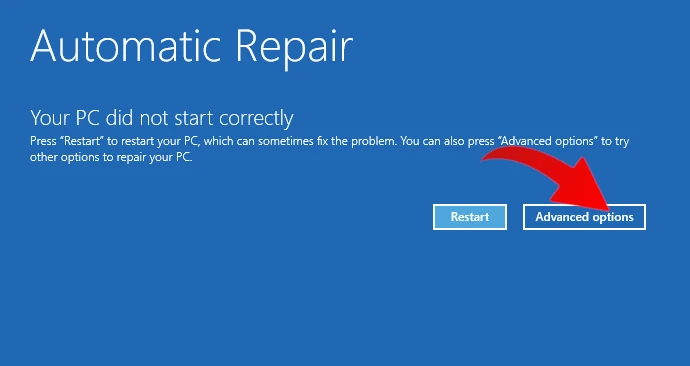
Choose:
Advanced Options
Fix 4 – Run Startup Repair
Inside Recovery:
Troubleshoot
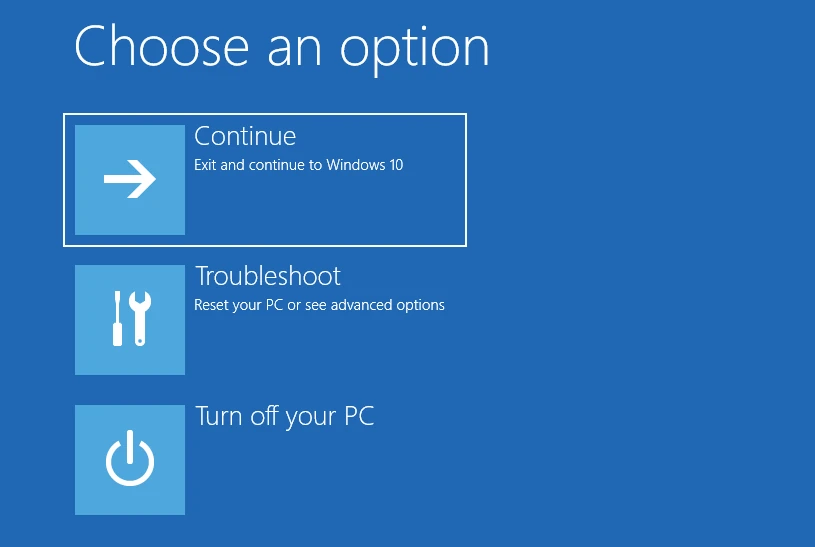
Advanced Options
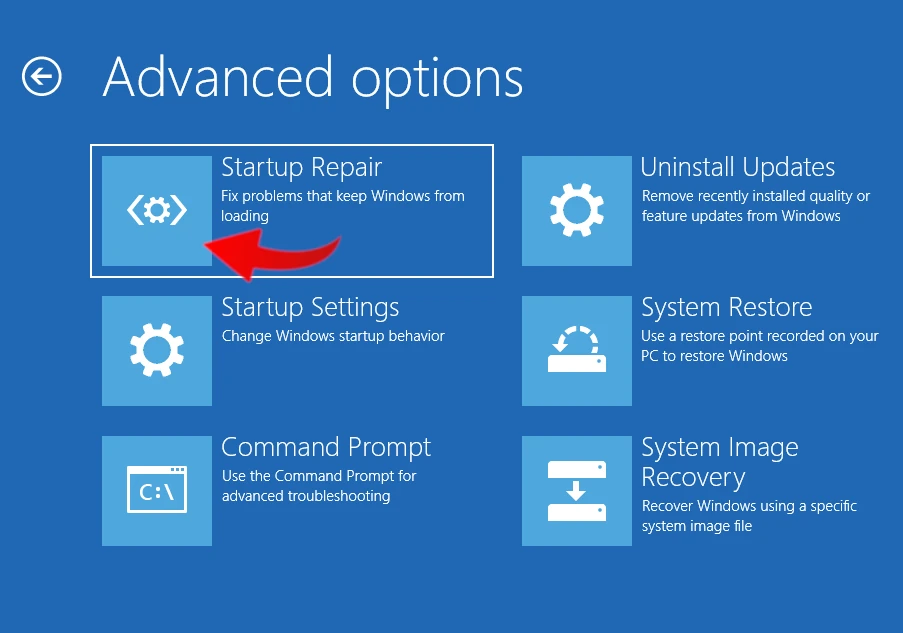
Startup Repair
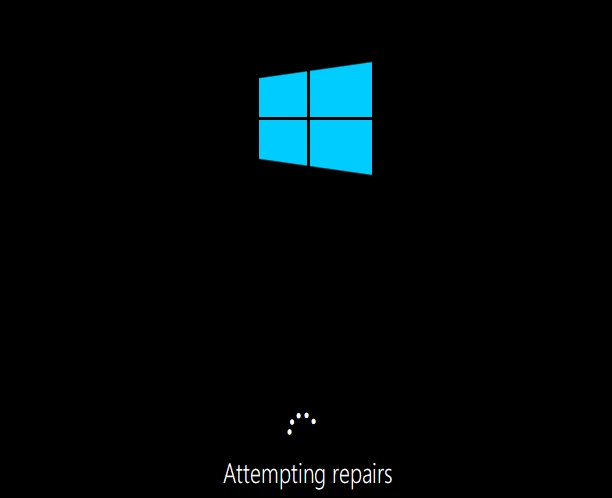
Windows automatically scans and repairs startup issues that may be preventing updates from completing.
Fix 5 – Uninstall the Latest Windows Update
Many "Getting Windows Ready" issues are caused by a failed cumulative update.
From Recovery:
Advanced Options ➨ Uninstall Updates
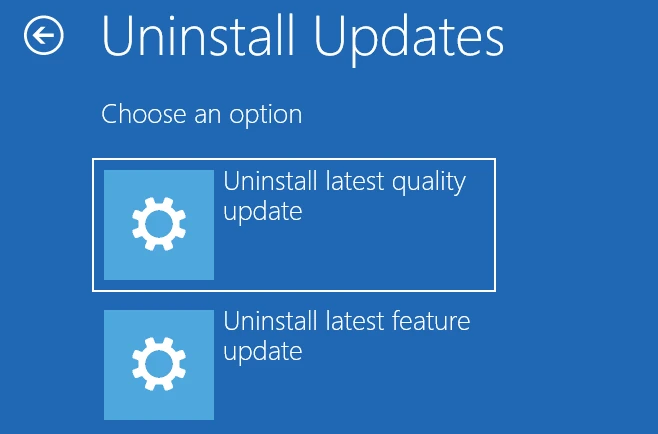
Choose:
- Uninstall Latest Quality Update
or
- Uninstall Latest Feature Update
Restart Windows afterward.
Fix 6 – Run System File Checker
Open Command Prompt from Advanced Options.
Run:
sfc /scannow /offbootdir=C:\ /offwindir=C:\WindowsReplace C: if Windows is installed on another drive.
SFC repairs corrupted Windows system files.
Fix 7 – Repair the Windows Image with DISM
If Windows eventually boots:
Open Command Prompt as Administrator.
Run:
DISM /Online /Cleanup-Image /RestoreHealthWait for the repair to complete.
Restart your PC.
Fix 8 – Check the Hard Drive
Corrupted storage is another common cause.
Run:
chkdsk C: /f /rAllow Windows to scan for:
- Bad sectors
- File system corruption
- Lost clusters
Large drives can take several hours.
Fix 9 – Perform System Restore
If the problem began after a recent update:
Recovery ➨ Advanced Options ➨ System Restore
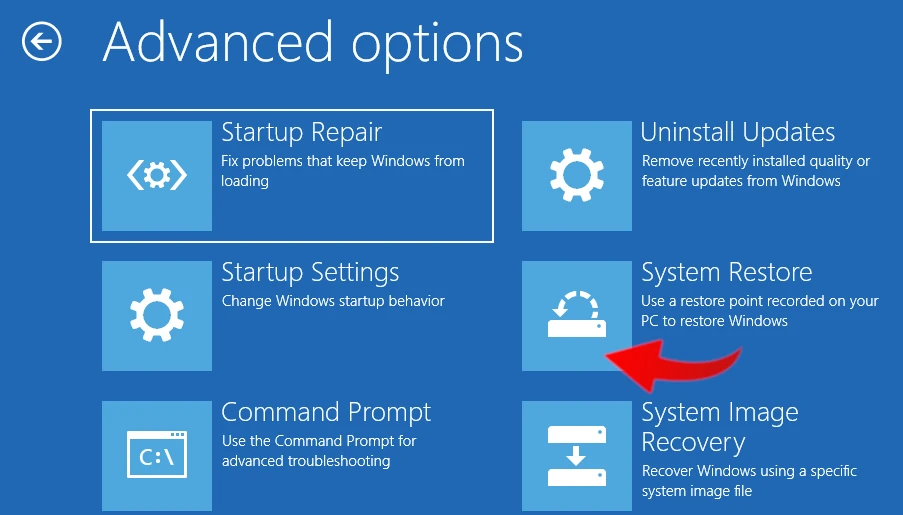
Choose a restore point created before the issue started.
Personal files remain untouched.
Fix 10 – Boot into Safe Mode
Recovery ➨ Startup Settings ➨ Restart
Press 4 for Safe Mode.
Once Windows loads:
- Remove recently installed software
- Update drivers
- Remove problematic antivirus software
- Install pending Windows updates
Restart normally.
Fix 11 – Reset Windows
If none of the previous methods work:
Recovery ➨ Troubleshoot ➨ Reset this PC
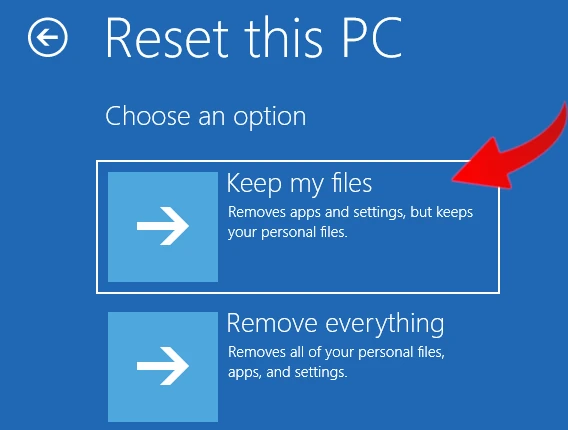
Choose:
Keep my files
Windows reinstalls itself while preserving personal documents.
If Windows Boots Successfully
Once you're back in Windows:
- Install all pending Windows Updates.
- Update device drivers.
- Check SSD or HDD health.
- Free at least 20 GB of disk space.
- Create a Restore Point.
- Run a full malware scan.
- Restart the computer once more to ensure updates complete correctly.
Prevent It from Happening Again
You can reduce the chances of seeing this issue again by:
- Keeping at least 20–30 GB of free storage.
- Avoiding forced shutdowns during updates.
- Keeping BIOS and firmware current.
- Updating storage and chipset drivers.
- Running Windows Update regularly instead of postponing updates for long periods.
- Using a UPS on desktop PCs to prevent interruptions during updates.
Frequently Asked Questions
Will I lose my files?
No. These repair methods do not normally delete personal files.
Can I turn the PC off?
Only after waiting a reasonable amount of time and confirming Windows is no longer making progress.
![[SOLVED] Getting Windows Ready Stuck (Windows 11, 10)](/sites/default/files/styles/medium/public/2026-07/howto-pc-stuck-getting-windows-ready-dont-turn-off-computer-screen-error-fixed.webp.jpg?itok=w434g_Ol)



