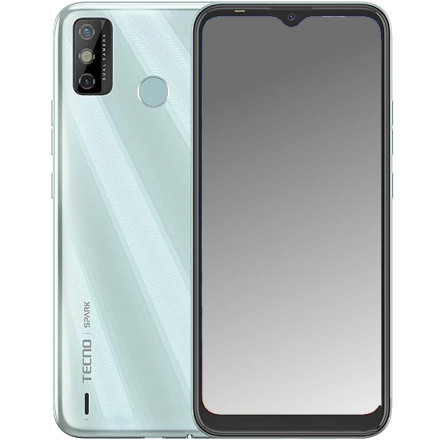
Tecno Spark 6 Go USB Drivers (ADB) – Windows 11/10/8.1/8/7
The Tecno Spark 6 Go is an Android smartphone powered by a MediaTek platform. Connecting the phone to a Windows computer allows users to transfer files, manage device data, and communicate with the phone through Android Debug Bridge (ADB).
The appropriate USB drivers allow Windows to recognize the device, while the ADB interface driver enables developers and advanced users to execute ADB commands, install APK files, and troubleshoot Android software.
The Spark 6 Go is associated with the model number KE5, although regional variants such as KE5J and KE5K also exist. Make sure the driver package matches the device variant where applicable.
Enable USB Debugging on the Tecno Spark 6 Go
Before using ADB, USB debugging must be enabled on the phone.
- Open Settings on the Tecno Spark 6 Go.
- Navigate to My Phone or About Phone.
- Locate Build Number and tap it seven times to enable Developer Options.
- Return to Settings and open Developer Options.
- Enable USB Debugging and accept the confirmation prompt.
- Connect the phone to your computer using a USB data cable.
ADB Driver Installation and Verification
- Install the Android ADB USB driver package on your Windows computer.
- Connect the Tecno Spark 6 Go using a USB data cable.
- Select File Transfer (MTP) from the USB connection notification if you also want to access phone storage.
- Open Device Manager and check under Android Device or Other Devices for the ADB interface.
- Open Command Prompt in your ADB platform-tools folder and enter:
adb devices- Check the phone screen for an RSA authorization prompt and select Allow.
- Run
adb devicesagain. The device should now appear with andevicestatus.
Tecno Spark 6 Go USB Troubleshooting
- Phone not detected: Try another USB cable. Some cables support charging only and cannot transfer data.
- ADB device not listed: Confirm USB Debugging is enabled and accept the RSA authorization prompt on the phone.
- Unauthorized device: Disconnect and reconnect the phone, then approve the computer's debugging authorization.
- Unknown USB device: Open Device Manager and check whether the appropriate Android ADB interface driver is installed.
- Phone only charges: Pull down the notification panel and change the USB connection mode to File Transfer (MTP).
- ADB connection keeps disconnecting: Try another USB port, preferably a direct motherboard USB port rather than a USB hub.
Important: The standard Android ADB driver is intended for debugging and communication with the phone. MediaTek Preloader USB VCOM and CDC drivers serve a different purpose and are generally used for firmware servicing and flashing rather than ordinary ADB connections.1
For additional troubleshooting, see the Android Debug Bridge (ADB) documentation.
Android ADB USB Driver (For connecting to PC)
File: latest_usb_driver_windows.zip
1ee1d023a99ffac962af4454eb9b9900f6858c687b4d5311e8fb361548d6c078
Android CDC USB Driver (For Flashing Firmware)
File: android-cdc-driver.zip
2131eae076c922961c83f77f9b9e0a05f08cfe9d5e27118710997ee663e68549
Android VCOM USB Driver (For Flashing Firmware)
File: android-vcom-driver.zip
74ebd540d47e200e07ba18853bd07ed3a7576cb3cf63d8f6dccad2538f7232aa
Android ADB and Fastboot Drivers
File: adb-setup-1.4.3.zip
2fd87bf2b33b4731e69bb12b8bb2366ec788d0496d9f70e23858a0e736ccdc3d
MTK VCOM USB Drivers
File: Windows-10_MTK-VCOM-USB-Preloader-Drivers.zip
dd755bd4ed8173b9aa4dc488deb57a17c58806ade3c708c1918f21ec8ddfad69
Step 1 — Download and extract the Android USB Driver to your PC.
Step 2 — Click Start (Windows) -> Control Panel -> Device Manager (Select Device Manager).
Step 3 — On the Device Manager window find and click on computer name to select Add legacy hardware.
Step 4 — Select Next
Step 5 — Selext Install the hardware that I manually select from a list (Advanced), and click the Next
Step 6 — Select Show All Devices afterward click Next button again.
Step 7 — Click the Have Disk button.
Step 8 — Click Browse button to find the extracted Android ADB Driver -> android_winusb.inf and click on Open.
Step 9 — Click OK.
Step 10 — Now select the Android ADB Interface -> click Next button.
Step 11 — Click Next button again.
Step 12 — Windows Security box will appear, to confirm whether you really want to install the Android USB Driver, so just choose the Install this driver software anyway.
Step 13 — Once you clicked the Finish button, then repeat from step 2 to choose Android Composite ADB Interface.
Step 14 - Done.