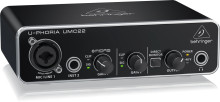
🧱 Device
🏗️ Manufacturer
#️⃣ Model No.
UMC22
Also Known As
UMC-22
In order to use the Behringer U-PHORIA UMC22 on Windows the ASIO USB Audio drivers will need to be installed.
Quick Steps to Install Behringer UMC22 Driver
- Download the driver – Download the Behringer UMC22 U-PHORIA driver package for your version of Windows.
- Run the installer – Locate the downloaded file and double-click the setup program.
- Follow the prompts – Complete the installation by following the on-screen instructions.
- Connect and test – Connect the UMC22 USB audio interface, then open your audio software to confirm it is detected and working properly
ASIO4ALL - Universal ASIO Driver For WDM Audio
File: ASIO4ALL_2_16.exe
SHA-256 Checksum:
c6b2f621a53584c581a9f5ce288d6d88562a062e2859de787c5e5d9453b75c50
ASIO4ALL - Universal ASIO Driver For WDM Audio
File: ASIO4ALL_2_15_English.exe
SHA-256 Checksum:
74dfe576c6f16e362ff2d44c313947aad9d63ed839b4d3ffac88a1320a486b90
ASIO4ALL - Universal ASIO Driver For WDM Audio
File: ASIO4ALL_2_14_English.exe
SHA-256 Checksum:
15a3a1ff103f583f9e5493349c85b98799baadee44cb3f25a0611141a4a6d8fa
ASIO4ALL - Universal ASIO Driver For WDM Audio
File: ASIO4ALL_2_13_English.exe
SHA-256 Checksum:
302faecee219a50ed7642188a358e622fbf30ac386b6b7de44588c69a4d0a78d



