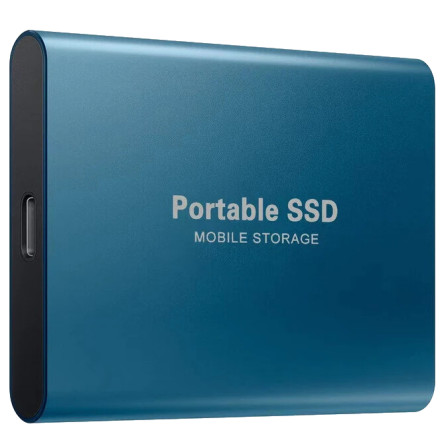
The Cynthia 16TB External Hard Drive is marketed as a high-capacity USB storage device. If Windows does not recognize it, displays the wrong capacity, or has trouble copying files, work through these checks before attempting to format the drive.
Important: Verify the advertised 16TB capacity. Some inexpensive external drives sold under unfamiliar brand names report a much larger capacity than their actual physical storage. A drive appearing as 16TB in File Explorer does not prove it can store 16TB of data. Test its full capacity before trusting it with important files.
1. External Hard Drive Not Detected
- Disconnect the drive and reconnect it to another USB port.
- Connect it directly to the computer rather than through a USB hub.
- Try another USB cable if one is available.
- Test the drive on another computer.
- Check whether the drive's indicator light turns on or whether it shows signs of activity.
Windows normally detects standard USB storage devices without requiring a separate driver.
2. Drive Not Showing in File Explorer
The drive may be detected by Windows but missing a drive letter.
- Right-click the Windows Start button.
- Select Disk Management.
- Locate the external drive by its reported capacity.
- If the partition is healthy but has no drive letter, right-click it.
- Select Change Drive Letter and Paths and assign an available letter.
Do not initialize, format, or create a new partition if the drive contains files you need. These actions can make data recovery more difficult.
3. External Drive Shows the Wrong Capacity
A 16TB drive will normally appear as approximately 14.55TB in Windows because Windows uses a different method of calculating storage capacity, and depending the format of the drive and the use of System Restore this amount cold be less.
If the drive reports only 32GB, 64GB, 128GB, or another amount the drive may be partitioned or formatted incorrectly.
4. Test the Actual Storage Capacity
For a drive advertised as 16TB, use H2testw to check whether the available storage can actually hold and retrieve data.
- Connect the external drive to your computer.
- Make sure it is empty and contains no files you need.
- Run H2testw and select the external drive.
- Select all available space and choose Write + Verify.
- Allow the test to complete, then review the results.
5. Files Copy Slowly or Become Corrupted
- Connect the drive directly to a USB 3.0 or faster port.
- Avoid disconnecting the drive during file transfers.
- Try another USB cable.
- Check the drive for errors if it has passed a capacity test.
- Do not use it for backups until its actual capacity and reliability have been verified.
Important Storage Warning
Do not rely on an advertised 16TB capacity until a complete write-and-read verification test has passed. If the drive fails, reports errors, or repeatedly loses files, stop using it for important data.
Technical note: Standard USB external storage does not normally require a special manufacturer driver. Windows includes the necessary USB mass-storage support.
Depending on your operating system the format of the drive will be important, for Windows systems the easiest format and most compatible with other systems with be exFat.