
Quick Fix:
- Open Device Manager
- Find missing Network Controller
- Download latest WiFi driver
- Install and reboot”
One of the most common problems after installing or upgrading to Windows 11 is missing WiFi. In many cases, the wireless adapter completely disappears, shows an error in Device Manager, or Windows simply cannot detect nearby networks.
This usually happens because:
- the correct WiFi driver was not installed,
- Windows Update failed to load a compatible driver,
- the adapter was disabled during setup,
- or the hardware requires a newer OEM-specific driver.
The good news is that most WiFi issues in Windows 11 can be fixed in a few minutes.
Common Symptoms
Users commonly report:
- No WiFi option in Windows 11
- “No networks found”
- WiFi missing from Quick Settings
- Yellow warning icon in Device Manager
- WiFi worked before reinstalling Windows
- Internet only works with Ethernet
- Wireless adapter disappeared completely
This affects laptops and desktops from companies like Dell, HP, Lenovo, ASUS, and Acer.
First: Restart Your PC
It sounds simple, but always restart first.
During installation, Windows 11 sometimes delays hardware initialization until the next reboot. A full restart may restore the adapter automatically.
Check If Airplane Mode Is Enabled
Open:
- Settings → Network & Internet
Make sure:
- Airplane Mode is OFF
- WiFi is enabled
Many laptops also include a physical wireless toggle or keyboard shortcut such as:
- Fn + F2
- Fn + F5
- Fn + F12
depending on the manufacturer.
Check Device Manager
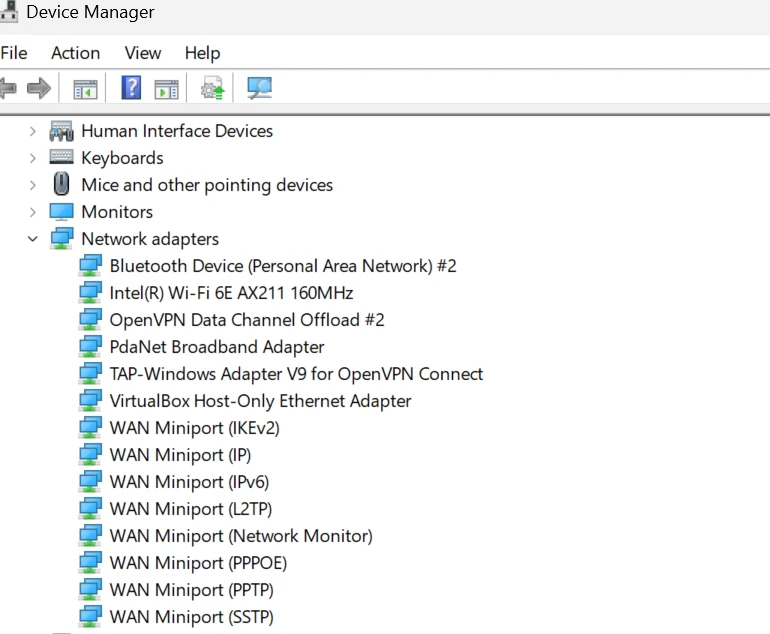
- Right-click the Start button
- Select Device Manager
- Expand:
- Network adapters
- Other devices
Look for:
- Intel WiFi adapters
- Realtek Wireless LAN
- Qualcomm Atheros
- MediaTek
- Broadcom devices
- Unknown devices with warning icons
If the adapter appears with a yellow symbol, the driver is missing or corrupted.
Install WiFi Drivers Manually
This is the most effective fix.
If your PC has no internet:
- use another computer or smartphone,
- download the correct driver,
- then transfer it using a USB flash drive.
Find Your Wireless Adapter
In Device Manager:
- Right-click the unknown network device
- Select Properties
- Open the Details tab
- Change Property to:
- Hardware Ids
You may see something like:
PCI\VEN_8086USB\VID_0BDAPCI\VEN_14C3
These IDs identify the chipset manufacturer.
Common Windows 11 WiFi Drivers
Intel Wireless Drivers
Used in many modern laptops.
Official site:
Common chipsets:
Realtek Wireless Drivers
Very common in budget laptops and USB adapters.
Official site:
Qualcomm Wireless Drivers
Often found in gaming laptops and OEM systems.
Official site:
MediaTek Wireless Drivers
Common in newer budget and ARM-based devices.
Official site:
Install Drivers Without Internet
Once downloaded:
- Extract the ZIP file if necessary
- Run Setup.exe
- Restart the PC
If no installer exists:
- Open Device Manager
- Right-click the adapter
- Select Update driver
- Choose:
- Browse my computer for drivers
- Point Windows to the extracted driver folder
Use Windows Update
After basic connectivity returns:
- Open Settings → Windows Update
- Check for updates
- Install all optional driver updates
Windows 11 often downloads newer wireless drivers automatically.
WiFi Missing Entirely? Try BIOS Settings
Some systems allow wireless hardware to be disabled in BIOS/UEFI.
Restart your PC and enter BIOS using:
- F2
- Delete
- Esc
- F10
Check for:
- Wireless LAN
- WLAN
- Internal WiFi
- Network Adapter
Make sure it is enabled.
Reset Network Settings
If drivers install correctly but WiFi still fails:
- Open:
- Settings → Network & Internet → Advanced network settings
- Select:
- Network reset
- Restart the computer
This rebuilds Windows networking components.
Command Prompt Repair Fixes
Open Command Prompt as Administrator and run:
cmd
netsh winsock reset
netsh int ip reset
ipconfig /flushdns
Restart afterward.
Windows 11 Setup Cannot Detect WiFi
Some Windows 11 installations require internet during setup. If WiFi drivers are missing during installation, you may become stuck at the network screen.
To bypass this:
- Press:
- Shift + F10
- Type:
cmd
OOBE\BYPASSNRO
- Press Enter
The PC will reboot and allow offline setup.
USB WiFi Adapters as a Backup
If internal WiFi hardware fails entirely, a USB WiFi adapter can restore connectivity quickly.
Popular chipset makers include:
- Realtek
- MediaTek
- TP-Link
- ASUS
Many modern adapters support Windows 11 automatically.
Common Causes After Upgrading From Windows 10
Many upgrade-related WiFi problems occur because:
- old Windows 10 drivers are incompatible,
- OEM drivers were removed,
- antivirus software interfered,
- or older hardware lacks official Windows 11 support.
This is especially common on systems upgraded through unsupported TPM bypass methods.
Final Thoughts
Most Windows 11 WiFi problems are driver-related, not hardware failure. In many cases, manually installing the correct wireless LAN driver completely restores functionality.
The fastest path to fixing the issue is:
- Identify the wireless chipset
- Download the latest OEM driver
- Install manually
- Run Windows Update afterward
If possible, always download drivers directly from the laptop manufacturer or chipset vendor instead of random third-party driver sites.



