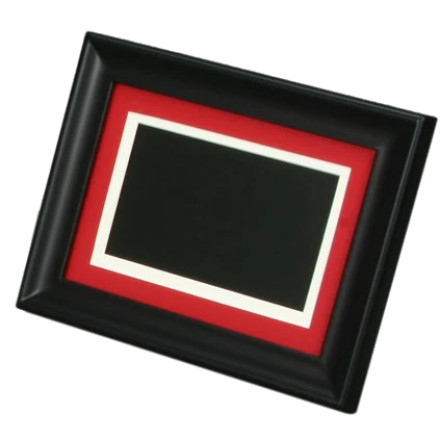
The HP df780, df820, and df1010 series digital picture frames allow users to display digital photos, play music, and enjoy video clips without needing a computer. These frames include built-in memory, removable memory card slots, USB connectivity, and remote control functionality.
Although these models are discontinued, they can still be useful for displaying family photographs and other digital media. This guide covers supported file formats, memory card compatibility, transferring photos, and troubleshooting common problems.
Note: Specifications vary between models. The df780 features a 7-inch widescreen display, the df820 has an 8-inch display, and the df1010 features a 10.4-inch display.
Supported Photo, Video & Audio Formats
The df780, df820, and df1010 support several common media formats. However, they do not support every image, audio, or video file type.
| Media type | Supported formats |
|---|---|
| Photos | JPEG / JPG (Baseline JPEG) |
| Video | MPEG-1, MPEG-4, Motion JPEG |
| Audio | MP3 |
Important: Progressive JPEG images, PNG, GIF, RAW, and other unsupported image formats may not display. For best results, convert photographs to standard baseline JPEG before transferring them to the frame.
Video compatibility can also depend on encoding and compression settings, not just the file extension.
Supported Memory Cards & Storage
The frames support several removable storage formats, making it possible to display photos directly from a digital camera's memory card.
| Memory card | Supported type |
|---|---|
| Secure Digital | SD / SD 2.0 |
| MultiMediaCard | MMC |
| Memory Stick | Memory Stick Pro |
| CompactFlash | CF Type I |
| Microdrive | CF Type II |
| xD-Picture Card | xD |
The df780, df820, and original df1010 models include 512MB of internal memory. They also provide a USB 2.0 host port for compatible USB flash drives. The mini-USB device connection can be used to connect the frame to a computer for managing internal memory.
Transferring Photos to Internal Memory
The HP digital picture frames can display pictures directly from a supported memory card or USB flash drive. You can also connect the frame to a computer using its mini-USB connection to manage the built-in memory.
To transfer photos:
- Connect the digital picture frame to your computer using a USB cable.
- Turn on the frame and allow Windows to recognize the connected device.
- Open File Explorer and locate the digital picture frame's internal storage.
- Copy your JPEG photographs into the internal memory.
- Safely eject the device before disconnecting the USB cable.
The df780, df820, and original df1010 have 512MB of internal memory, providing space for approximately 1,000 photographs, depending on image size.
HP Digital Picture Frame Troubleshooting
Picture Frame Won't Turn On
If the HP digital picture frame does not power on:
- Check that the AC power adapter is firmly connected to the frame and electrical outlet.
- Verify that the power switch is in the ON position.
- Disconnect the power adapter, wait briefly, and reconnect it.
- Make sure you are using the correct power adapter for your model.
The df780 and df820 use a 9V, 2A adapter, while the original df1010 uses a 12V, 1.5A adapter. Do not substitute adapters without checking voltage, polarity, and connector compatibility.
Memory Card Is Not Recognized
If the frame does not recognize a memory card:
- Remove the card and reinsert it, making sure it is facing the correct direction.
- Check that the card is one of the supported formats.
- Try another compatible memory card or USB flash drive.
- Access the frame's media source selection menu and select the inserted card.
- Check that the card contains supported JPEG photographs.
Do not force a memory card into its slot. The card should fit in the correct orientation.
Photos Are Not Displaying
If the frame recognizes the memory card but does not display photographs, check the image format.
The df780, df820, and original df1010 are designed for standard baseline JPEG images. Photographs saved as progressive JPEG, PNG, GIF, or RAW may not display.
Try converting the photographs to standard JPEG format using an image editor. Also, very large, high-resolution images can take longer to load and display. Reducing image dimensions can improve performance.
Remote Control Does Not Work
If the remote control stops responding:
- Remove any protective battery tab if the remote is being used for the first time.
- Replace the battery with a CR2025 3V lithium coin cell.
- Make sure the battery is installed with the positive (+) side facing up.
- Point the remote toward the frame's infrared receiver.
You can also use the physical control buttons on the frame to access menus and navigate photographs.
USB Connection to Computer Not Working
If Windows does not recognize the frame:
- Make sure the frame is powered on.
- Check that you are using the mini-USB device connection rather than the USB host port intended for flash drives.
- Try another USB cable that supports data transfer.
- Try a different USB port on the computer.
- Restart the frame and reconnect it.
The USB connection is intended for managing the frame's internal memory and transferring photographs.
Slideshow Is Slow or Pictures Take Too Long to Load
Large photographs can take longer to process, particularly when the images have much higher resolutions than the frame's display.
For better performance, resize photographs to approximately the frame's native resolution:
| Model | Display resolution |
|---|---|
| HP df780 | 800 × 480 |
| HP df820 | 800 × 600 |
| HP df1010 | 800 × 600 |
Using appropriately sized JPEG images can reduce loading times and conserve internal storage.
HP df780 / df820 / df1010 Specifications
Original df780, df820 and df1010 models
| Specification | df780 | df820 | df1010 |
|---|---|---|---|
| Screen size | 7-inch | 8-inch | 10.4-inch |
| Aspect ratio | 16:9 | 4:3 | 4:3 |
| Resolution | 800 × 480 | 800 × 600 | 800 × 600 |
| Internal memory | 512MB | 512MB | 512MB |
| Photo format | JPEG | JPEG | JPEG |
| Video | MPEG1, MPEG4, MJPEG | MPEG1, MPEG4, MJPEG | MPEG1, MPEG4, MJPEG |
| Audio | MP3 | MP3 | MP3 |
| USB | USB 2.0 | USB 2.0 | USB 2.0 |
Model identification note: The original df1010 should not be confused with the later df1010v1, which is a different 10.1-inch model with different specifications and documentation.