
If your computer suddenly has no sound after a Windows update, the issue is usually caused by a driver conflict, incorrect audio settings, or a playback device change. Windows updates sometimes install a generic audio driver that replaces the original driver from your computer manufacturer.
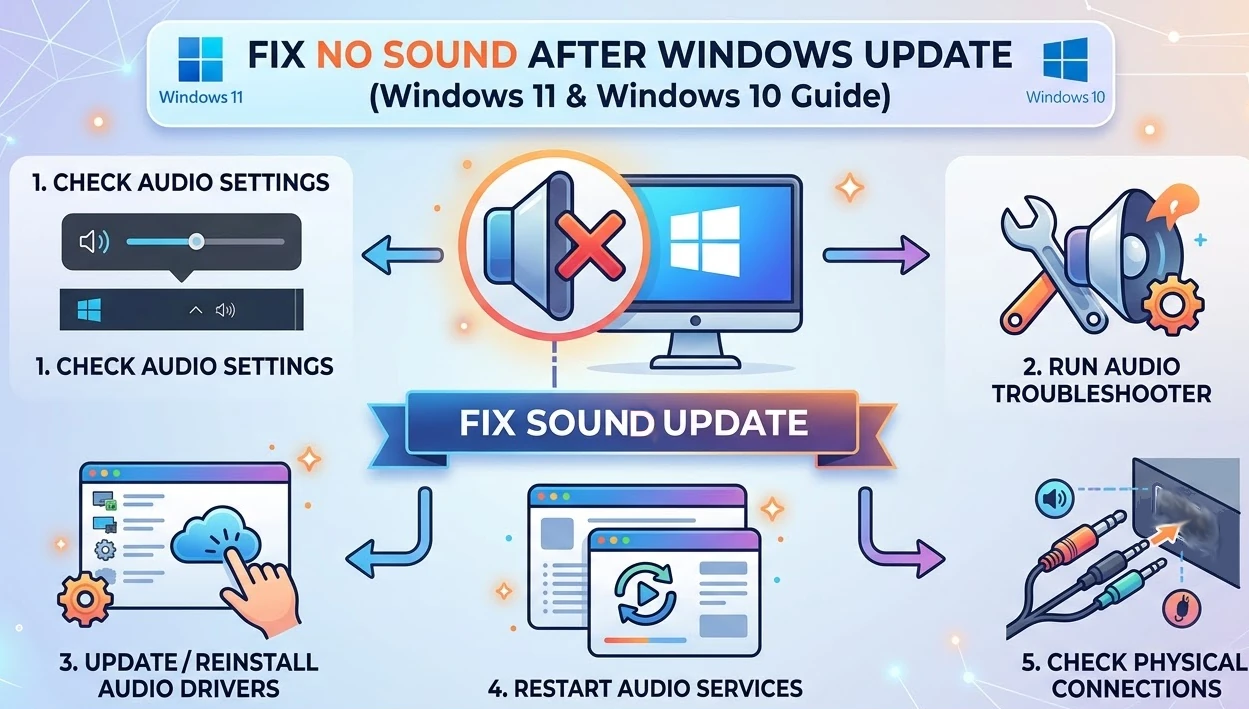
Fortunately, restoring sound usually takes only a few minutes. This guide explains step-by-step solutions to fix sound problems after a Windows update in both Windows 11 and Windows 10.
Quick Fix: No Sound After Windows Update
If your computer has no sound after a Windows update, the problem is often caused by an incorrect audio driver, a changed playback device, or disabled audio services. To fix it, first check your default audio output device in Sound Settings, then run the Windows audio troubleshooter. If the issue continues, reinstall or update the audio driver through Device Manager. In many cases, installing the correct Realtek Audio driver or Intel Smart Sound Technology driver restores sound immediately.
Why Sound Stops Working After a Windows Update
A Microsoft Windows Update can change several system components that affect audio.
Common causes include:
- Windows installs the wrong audio driver
- The default playback device changes
- Windows Audio services stop running
- Audio enhancements conflict with the new update
- System files become corrupted
- Drivers become incompatible with the latest Windows build
Most of these issues can be resolved by reinstalling the correct audio driver or adjusting sound settings.
Fix 1: Restart Your Computer
It may sound simple, but restarting your system can resolve temporary driver conflicts caused by Windows updates.
- Click Start
- Select Power
- Click Restart
After restarting, test your speakers or headphones again.
Fix 2: Check Your Default Audio Output Device
Windows updates sometimes switch the default audio output device.
Steps
Right-click the speaker icon in the taskbar
Image
Speaker Icon Windows 11 - Click Sound settings
- Under Output, choose the correct device
- Click Test
Your audio might be sending sound to:
- HDMI monitors
- Bluetooth headsets
- Disabled speakers
Selecting the correct device often fixes the issue immediately.
Fix 3: Run the Windows Audio Troubleshooter
Windows includes a built-in tool that automatically detects audio problems.
Steps
- Open Settings
- Go to
System → Troubleshoot → Other troubleshooters - Click Run next to Audio
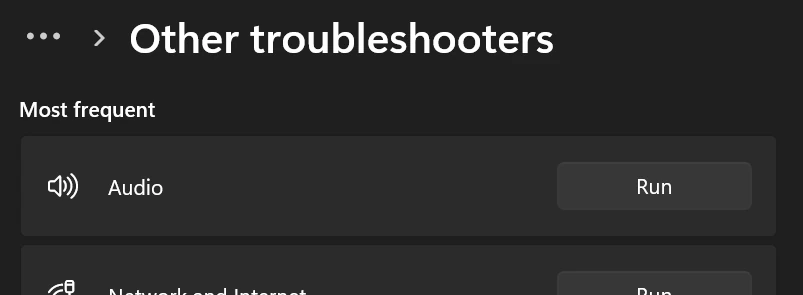
The troubleshooter will check:
- audio drivers
- playback device settings
- disabled services
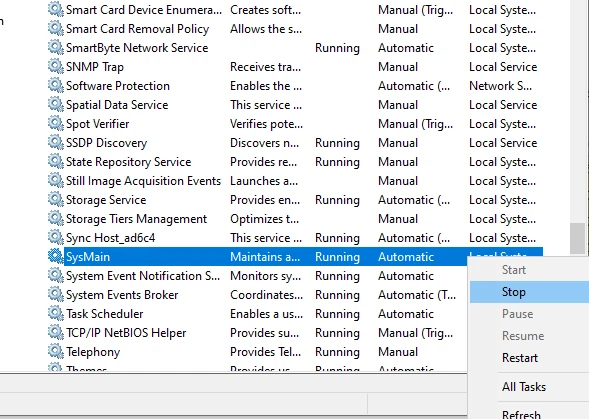
Fix 4: Restart Windows Audio Services
Windows audio relies on background services that can stop after updates.
Steps
- Press Windows + R
- Type:
services.msc
- Locate these services:
- Windows Audio
- Windows Audio Endpoint Builder
- Right-click each one
- Select Restart
Once restarted, test your sound again.
Fix 5: Update Your Audio Driver
Many audio problems occur because Windows installs a generic driver.
Updating the driver may restore full functionality.
Steps
- Right-click Start
- Open Device Manager
- Expand Sound, video and game controllers
- Right-click your audio device
- Click Update driver
- Select Search automatically for drivers
If Windows cannot find a driver, you may need to install one manually.
Examples include:
- Realtek HD Audio Driver
- Intel Smart Sound Technology Driver
- AMD HD Audio Driver
- NVIDIA HDMI Audio Driver (more so on Windows 7 systems)
Fix 6: Reinstall the Audio Driver
If the driver became corrupted during the update, reinstalling it can fix the problem. A more complex guide: How to Install Audio Drivers in Windows 11 (Step-by-Step Guide)
Steps
- Open Device Manager
- Expand Sound, video and game controllers
- Right-click your audio device
- Click Uninstall device
- Restart your computer
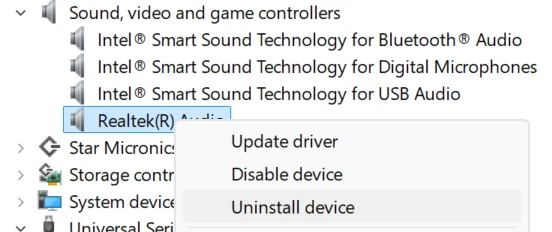
Windows will reinstall the audio driver automatically.
Fix 7: Roll Back the Audio Driver
Sometimes Windows installs a newer driver that does not work properly.
Rolling back the driver restores the previous version.
Steps
- Open Device Manager
- Right-click your audio device
- Select Properties
- Click the Driver tab
- Choose Roll Back Driver

Fix 8: Disable Audio Enhancements
Audio enhancement features can occasionally break sound playback.
Steps
- Open Settings
- Go to System → Sound
- Select your audio device
- Turn Enhance Audio off
Test your sound again after disabling enhancements.
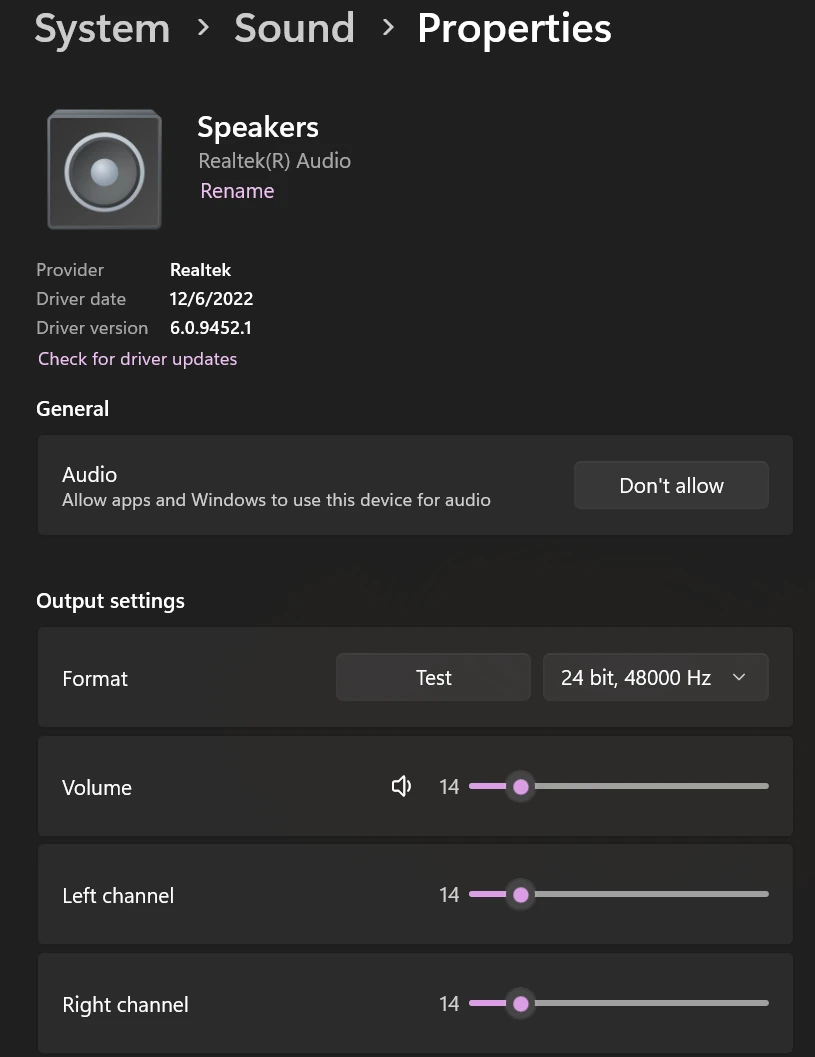
Fix 9: Change the Audio Format
Incorrect audio formats can sometimes prevent sound output.
Steps
- Open Control Panel
- Click Sound
- Select your playback device
- Click Properties
- Open the Advanced tab
- Try different formats such as:
- 16-bit 44100 Hz
- 24-bit 48000 Hz
Test sound after each change.
Fix 10: Repair Windows System Files
If Windows system files were damaged during the update, you can repair them using System File Checker.
Steps
- Open Command Prompt (Admin)
- Run:
sfc /scannow
- Wait for the scan to complete
- Restart your PC
This tool repairs corrupted Windows system files.
Fix 11: Use System Restore
If the problem started immediately after a Windows update, restoring your system may solve the issue.
Steps
- Search for Create a Restore Point
- Click System Restore
- Select a restore point created before the update
- Follow the prompts
This reverses system changes without deleting personal files, in some cases System Restore may not be enabled, this can happen if disk space is low or the System Restore has been manually disabled.
When to Download Audio Drivers Manually
If none of the solutions work, installing the latest driver directly from the manufacturer is often the best option.
Common audio drivers include:
- Realtek HD Audio Driver
- Intel Smart Sound Technology Driver
- AMD HD Audio Driver
- NVIDIA HDMI Audio Driver (more so on Windows 7 systems)
Installing the correct driver ensures compatibility with the latest Windows updates.
Prevent Sound Problems After Future Windows Updates
To avoid audio issues in the future:
- Install official drivers from your device manufacturer
- Create system restore points before major updates
- Keep your system drivers updated
- Disable problematic automatic driver updates
These steps help prevent driver conflicts when Windows installs new updates.
Frequently Asked Questions
Why did my sound stop working after a Windows update?
Windows updates sometimes replace the existing audio driver with a generic driver that may not fully support your hardware. Updates can also reset playback devices or disable audio services.
How do I reinstall my audio driver in Windows 11?
Open Device Manager, expand Sound, video and game controllers, right-click your audio device, select Uninstall device, then restart your computer. Windows will automatically reinstall the driver.
How do I check my default audio device?
Right-click the speaker icon in the taskbar, open Sound settings, and choose the correct device under Output.
Can Windows updates break audio drivers?
Yes. Windows updates occasionally install newer drivers that may not work properly with some hardware. Reinstalling or rolling back the driver usually resolves the issue.
What is the most common fix for no sound in Windows?
The most common fix is reinstalling the audio driver, followed by checking the default playback device and restarting Windows audio services.
Final Thoughts
Experiencing no sound after a Windows update can be frustrating, but the problem is usually easy to fix. In most cases, the issue is caused by a driver conflict, incorrect playback device, or disabled audio service.
Following the troubleshooting steps above will restore sound on most Windows 11 and Windows 10 systems within minutes.



